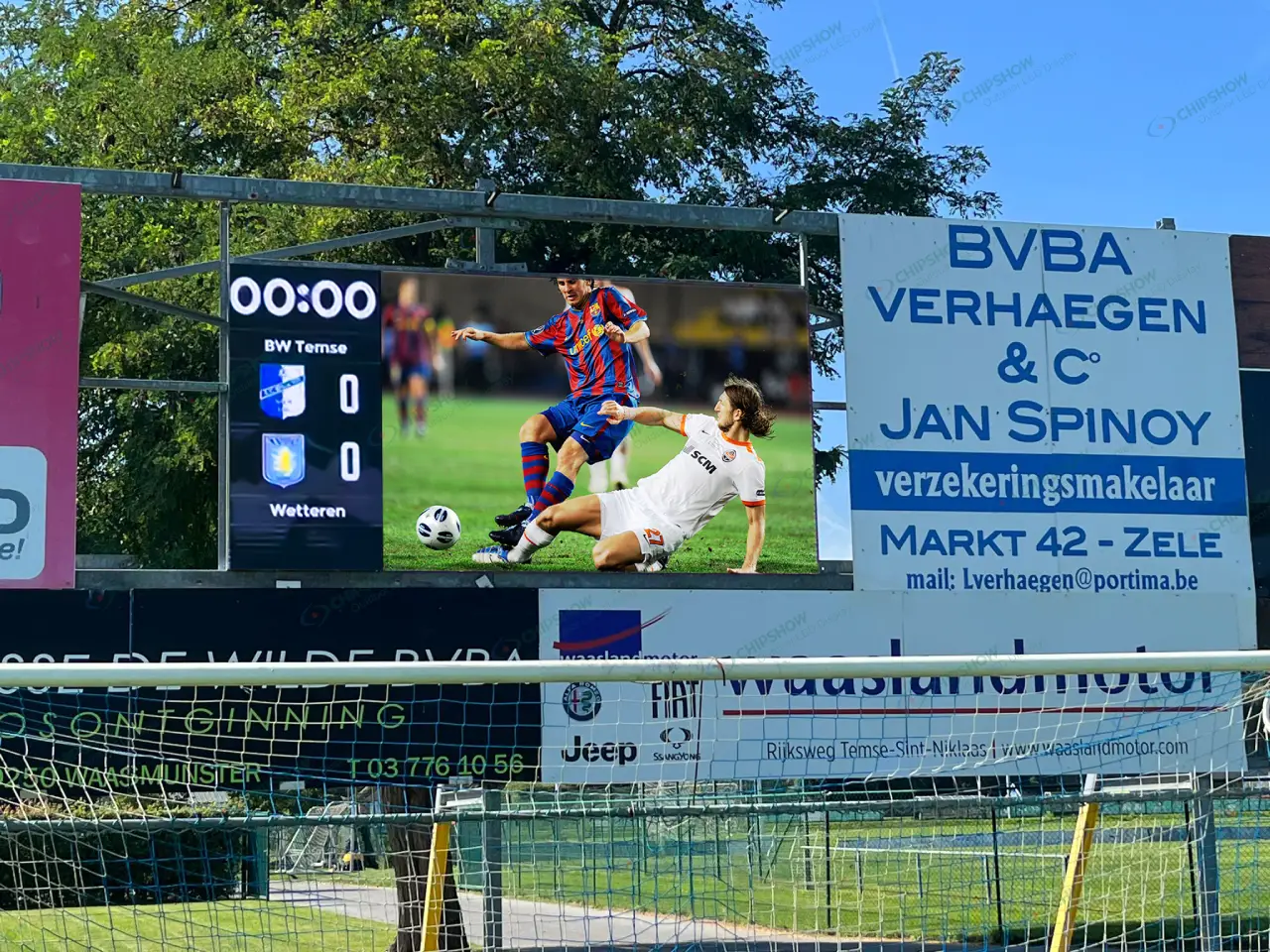
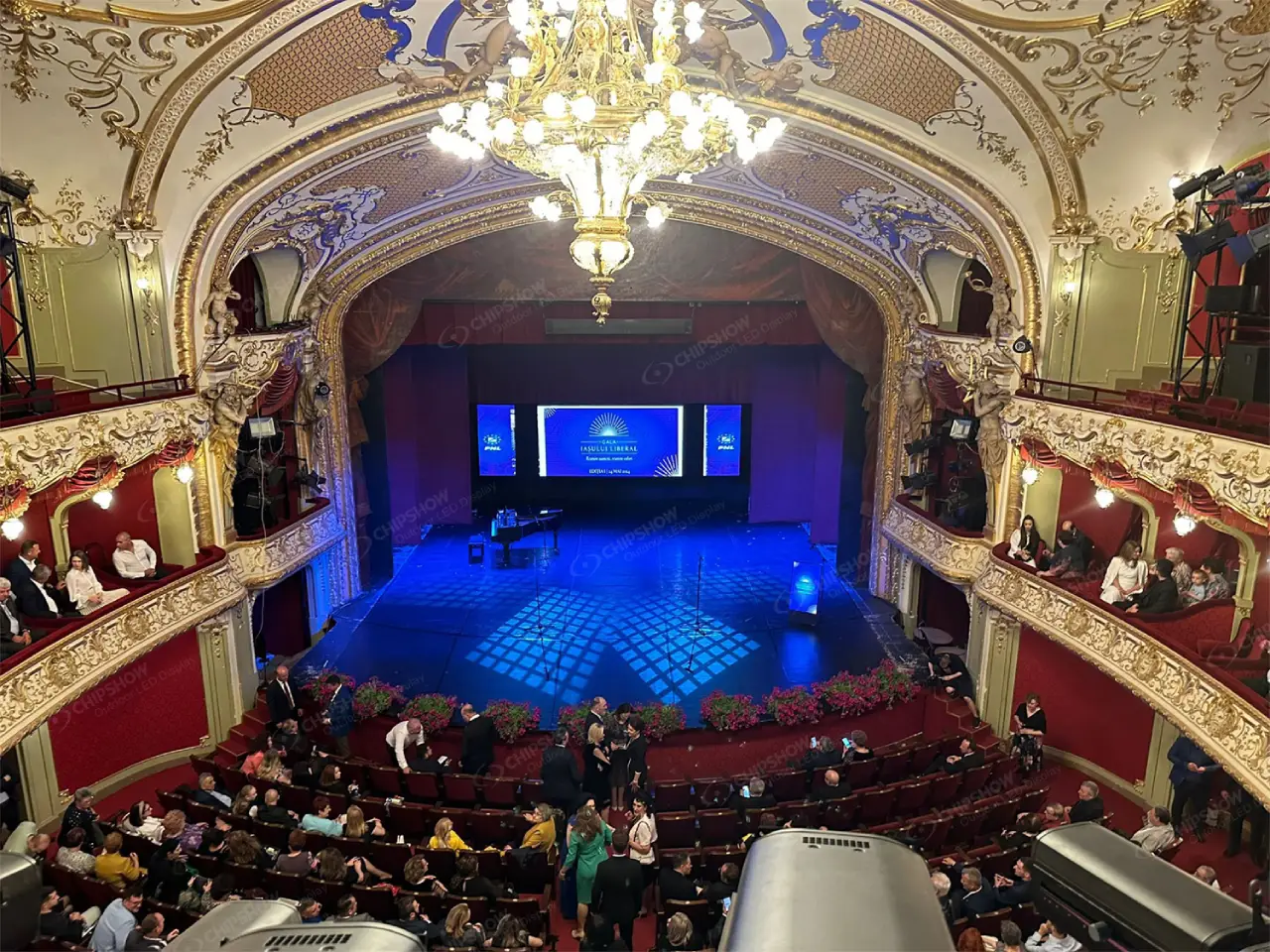
Plan digital signage installation around clear rules for content approval, screen grouping, scheduling, and update recovery. Multi-screen conflicts often result from outdated files, inconsistent time zones, excessive permissions, incomplete downloads, or mismatched player settings. Define these controls alongside the hardware design so each screen receives the approved content, plays it at the intended time, and uses a valid fallback if an update fails.

Match the CMS Architecture to the Screen Network
Choose a content management system (CMS) architecture that fits your locations, connectivity, and operating responsibilities.
Screen count alone cannot determine the appropriate architecture. Ten screens across remote sites may require stronger delivery controls than fifty screens inside a single building.
For digital signage installation planning, record each site’s bandwidth, connection reliability, operating hours, and support resources. Identify restrictions on external hosting, remote access, and data storage.
| Architecture | Suitable Project Conditions | Procurement Checks |
|---|---|---|
| Cloud-hosted CMS | Distributed sites requiring central remote management. | Confirm hosting location, offline functions, subscription scope, and data export. |
| On-premises CMS | Organizations requiring locally managed servers and infrastructure. | Assign server maintenance, backups, secure remote access, and recovery responsibilities. |
| Hybrid architecture | Networks combining central services with defined local functions. | Identify which functions continue during internet, server, or site connection failures. |
A cloud-hosted CMS can distribute files to local players. Define “hybrid” in the quotation by listing the actual services and their locations.
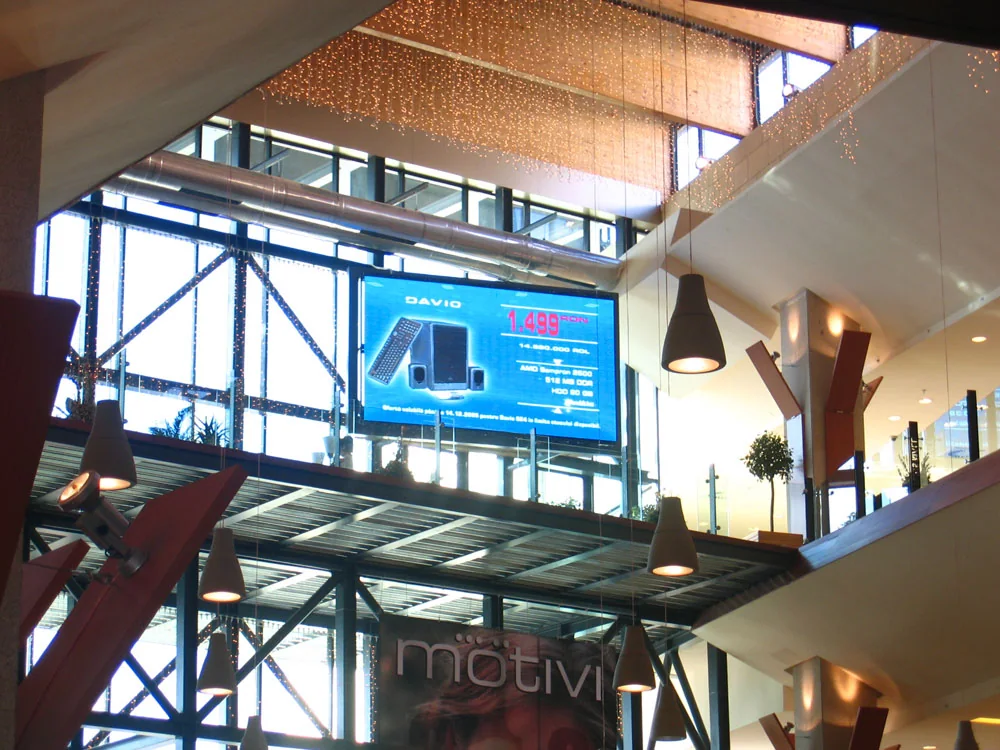
Central and Local Playback
Separate the location of the CMS from the location of playback. A central CMS can manage players that download and render media locally.
Cached media can continue during an internet outage if the player supports offline playback and the schedule remains valid. Live streams, web pages, and external data feeds may still depend on connectivity.
Also distinguish coordinated scheduling from synchronized video. Screens starting the same campaign at an agreed time may be sufficient for separate locations. Adjacent screens showing continuous motion may require frame-accurate synchronization.
Screen Groups and Device Naming
Reliable multi-screen content management depends on stable device identities and controlled group membership.
Use a consistent name such as UK-LON-SITE07-ENTRANCE-01. Store resolution, orientation, time zone, and service status as device attributes.
Separate test devices from production screens. Check overlapping groups and document how the CMS resolves competing assignments.
Keep the screen’s asset identifier when replacing a player. Record the new player’s serial number, software version, and approved configuration separately.
Player and Controller Responsibilities
Document the signal path during digital signage installation: CMS, media player, processor or sending controller, receiving cards, and LED modules.
The CMS manages supported content and publishing functions. The player retrieves media, applies schedules, and generates video output. LED control equipment processes or maps that output for the display.
Some products combine these functions. Require suppliers to identify each device’s responsibilities and the interfaces between them.
Evaluate an LED screen content management system with the proposed player and controller combination. Display hardware alone does not establish scheduling, approval, or offline playback capabilities.
Control Users, Assets, and Publishing Rights
Set clear publishing permissions so approved content reaches its intended screens without affecting other campaigns.
The digital signage installation handover should include account ownership, a permissions matrix, and an approval workflow tested with real user roles.
Role-Based Permissions
Separate content creation, approval, publishing, and system administration where staffing permits.
Regional editors should access only their assigned screens, content areas, or time slots. Reserve global publishing and controller configuration for designated personnel.
Use individual accounts and supported multifactor authentication. Define how access is reviewed and removed when staff or contractors leave.
Test a regional account against shared templates, copied layouts, and overlapping groups. A restricted account should remain restricted through every publishing route.
Asset Version Control
Give each approved asset a unique version identifier. Record its owner, language, dimensions, campaign, and approval status.
Avoid silently replacing files under names such as final-video.mp4. A player’s cached copy may differ from the version displayed in the CMS.
Treat each release as a defined package of assets, layouts, playlists, targeting, and schedules. Retain the previous approved package for recovery.
Confirm that the CMS can identify which release each player has downloaded and which release it is currently running.
Approval and Expiration Rules
Require renewed approval when media, targeting, or campaign dates change.
Separate campaign end times from file deletion. A file can remain stored on a player after its authorized playback period ends.
For time-sensitive campaigns, specify player-side expiry and an approved replacement playlist. Test these functions while the player is disconnected.
Also define how urgent corrections are handled. A controlled emergency publishing route should record the operator, affected screens, reason, and duration.
Synchronize Schedules Across Locations
Consistent digital signage content scheduling requires accurate clocks and explicit rules for local execution.
Include time configuration and campaign boundaries in digital signage installation acceptance tests.
Time Reference and Time Zones
Synchronize servers and players with approved time sources. The IETF’s network time recommendations address stable, accurate, and secure NTP operation.
Record event timestamps with UTC or an explicit offset. For recurring local schedules, use location-based time zones where supported.
Confirm which clock the CMS uses to interpret a schedule: server, browser, player, or selected site.
Test daylight saving transitions, including missing and repeated local hours. Accurate clocks support scheduling; they do not establish frame-accurate synchronization between players.
Campaign Start and End Times
Distinguish a simultaneous launch from a local-time campaign.
A corporate announcement might activate at a single UTC timestamp. A retail campaign might begin at 09:00 at every location.
Define what happens at the end boundary. A campaign ending at 18:00 may need to stop immediately, even during a video.
To update multiple digital signage screens, distribute the release ahead of activation and confirm player readiness. Establish a rule for unready devices: delay their activation, retain approved content, or use a designated fallback.
Emergency Override Rules
Define priority between normal playlists, regional campaigns, service notices, and emergency messages.
Each override needs an authorized initiator, target group, duration, cancellation method, and recovery rule. After cancellation, the player should evaluate the current schedule rather than resume an expired item.
Test delivery to disconnected players. A remote command requires an available communication path; local rules cannot receive a new message without one.
For safety-related messaging, specify the applicable system requirements separately and verify the complete delivery arrangement.
Prevent Failed Updates From Interrupting Playback
Keep the current approved release active until its replacement has completed the required checks.
Digital signage installation testing should cover interrupted downloads, unavailable servers, invalid media, full storage, and player restarts.
File and Resolution Preflight
Check content against the actual display canvas, including dimensions, aspect ratio, orientation, cropping, and text placement.
Test the codec, video container, bitrate, frame rate, audio settings, and layout complexity on the selected player. A supported file extension does not prove that every encoding configuration will play correctly.
Verify player output settings, processor input limits, and LED mapping. Correct source dimensions cannot compensate for an incorrectly configured signal path.
Use a representative production playlist during acceptance. Include demanding layouts, embedded fonts, live elements, and the expected daily playback duration.
Local Cache and Download Confirmation
Distinguish “uploaded,” “assigned,” “downloaded,” “validated,” and “playing.” These states represent different delivery stages.
Specify complete-package activation so the player does not switch to a partially downloaded release. Where supported, verify files using checksums that detect differences between source and downloaded copies.
A matching checksum confirms file integrity, not successful decoding. Playback testing remains necessary.
Size storage for active content, incoming files, recovery content, and logs. Check how the player frees space without deleting files still in use.
Test offline playback through a restart, including expired campaigns and unavailable live feeds.
Staged Rollout and Rollback
Use a representative pilot group to verify a release ahead of wider deployment.
Include different player models, network conditions, resolutions, and time zones. Expand distribution after checking playback, timing, and delivery results.
Define rollback triggers and assign authority to stop deployment. Recovery should restore the required assets, layout, targeting, and schedule together.
Recheck campaign validity during rollback. If the previous release has expired, activate a separately approved fallback instead.
To prevent digital signage playback conflicts, deliberately test overlapping schedules and record which content wins under each priority rule.
Monitor Playback, Access, and Device Health
Monitor the delivery chain so operators can distinguish an online player from a screen showing the intended content.
A heartbeat reports that a player communicated at a particular time. It cannot prove that the LED surface displayed the correct image.
Collect the active release identifier, download status, decoding errors, storage capacity, clock drift, and restart events. Request controller and display health data where the equipment supports it.
Proof-of-play records report playback events according to the platform’s logging method. Player screenshots may show rendered content without confirming the physical display output.
For stronger assurance, combine software records with supported output monitoring or site inspection.
Record changes to assets, schedules, groups, permissions, and controller settings. Protect central logs against unauthorized alteration and avoid recording passwords or access tokens. OWASP’s logging recommendations address event selection, sensitive information, protection, and retention.
Assign alerts to named teams with response targets and escalation rules. Limit maintenance suppression to affected devices and expected events.
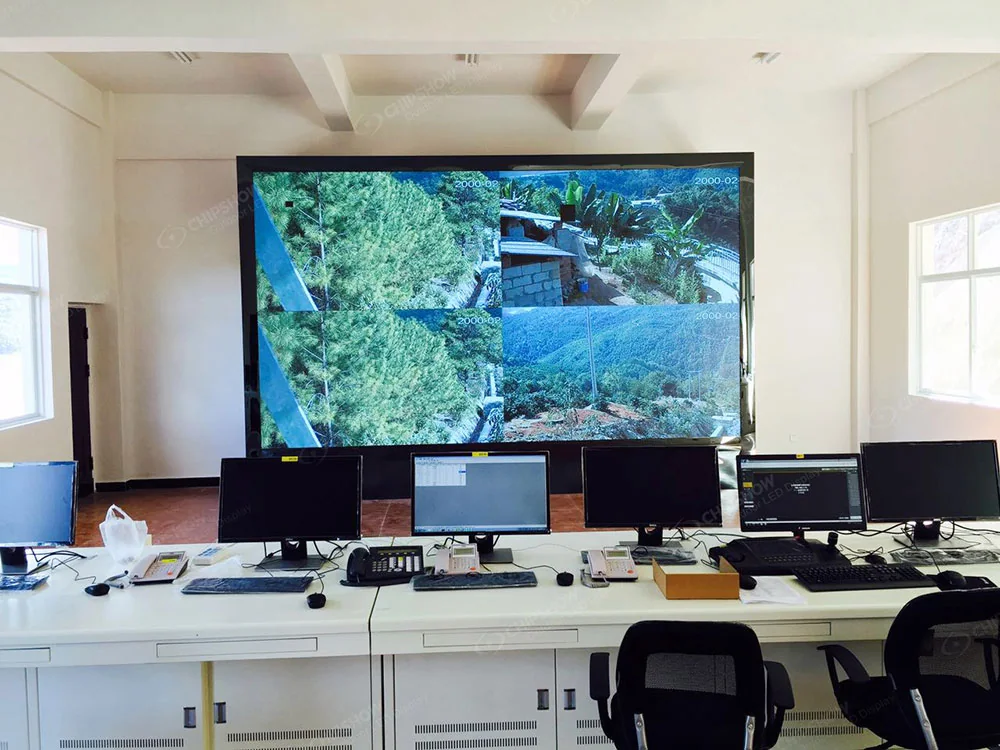
Physical service access also affects recovery. For outdoor sites requiring front or rear display maintenance, Chipshow’s C-Fit Easy Standard SMD supports both approaches. Confirm the installed access route and separate access to players, controllers, and network equipment.

Complete digital signage installation acceptance with observed results for updates, offline operation, expiry, overrides, and recovery. Retain approved configurations and assign a support owner for each part of the system.
Plan Digital Signage Installation for Reliable Content Updates
Reliable content updates depend on clear permissions, consistent timing, complete downloads, and tested recovery. Confirming these functions on the proposed system helps reduce playback interruptions and clarify support responsibilities. During digital signage installation planning, Chipshow can review the screen-side configuration against the proposed players and controllers, while the CMS integrator verifies scheduling, publishing, and offline playback.
FAQs
Q1. How Are CMS License Costs Usually Calculated?
Licenses may be charged per player, screen, endpoint, or subscription tier. Request definitions for each billable unit. The digital signage installation quotation should also identify storage, support, integration, connectivity, and replacement-device charges, including recurring fees.
Q2. Who Owns Content and Playback Data After Digital Signage Installation?
Specify ownership, usage rights, and access in the contract. Address uploaded assets, schedules, playback records, and analytics separately. Include export formats, retrieval periods, termination procedures, and the handling of retained backups.
Q3. Can Digital Signage Installation Connect to Third-Party Advertising Platforms?
Yes, with a supported CMS or player integration. Verify creative approval, schedule priority, playback reporting, and fallback behavior. Request a demonstration using the proposed software and hardware, with clear responsibility for ongoing integration support.
Q4. How Long Should Playback and Access Logs Be Retained?
Set retention by record type and project requirements. For budgeting, compare 90-day and 12-month storage options as planning scenarios. Confirm the required periods against contracts, investigation needs, and applicable privacy obligations.
Q5. Can Local Teams Publish Regional Content Without Changing Global Campaigns?
Yes, if the CMS supports restricted publishing areas and permissions. Assign local teams specific screens, content areas, or time slots. Test that regional changes cannot overwrite global campaigns, modify shared templates, or change protected priorities.