

A virtual production LED wall has to look right through the camera, not just from the studio floor. The wall, camera, tracking, processor and Unreal pipeline need to deliver the same result as shots change. Plan the setup around three decisions: how the timing reference travels through the system, how the processor drives the wall, and how nDisplay maps the rendered scene to the stage.
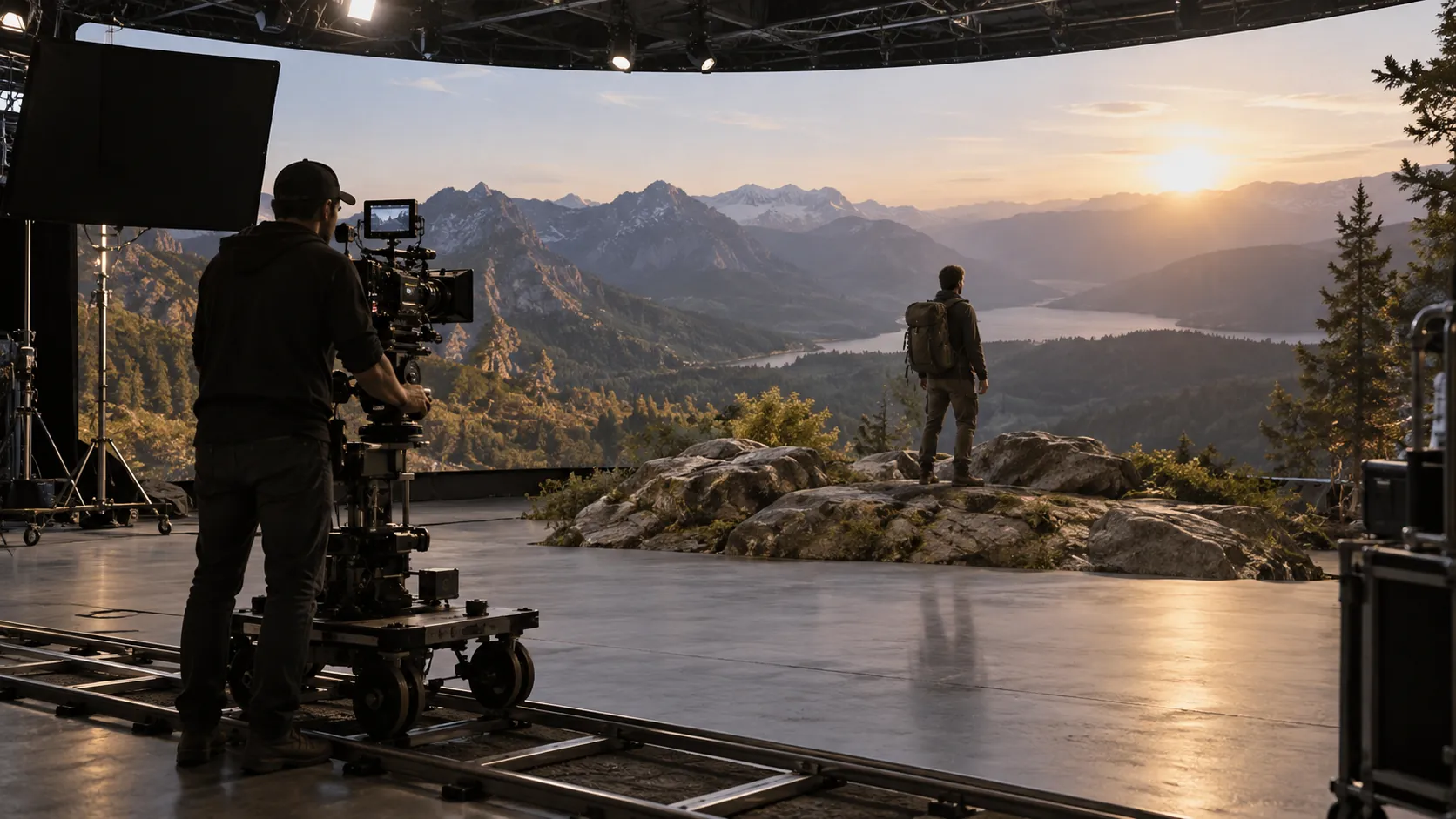
What a VP LED Wall Setup Has to Solve
The easiest way to miss a problem is to treat each part of the stage as if it were independent. In a real virtual production LED wall setup, the wall, camera, tracking, media server, and Unreal-driven playback all need to agree on timing and image placement. If they do not, the result can be sync drift, motion mismatch, or a wall image that looks fine on a bench but falls apart on camera.
Genlock provides a shared timing reference; the processor handles the display’s input, routing and output; nDisplay coordinates Unreal’s rendering and projection setup. Compare stage-side display families such as C-Shine Plus and C-Rock against that complete workflow, rather than choosing the wall first and hoping the other components will fit.
For most teams, the real goal is repeatability. If your setup behaves differently every time content, camera angle, or show frame rate changes, the problem is usually not one missing setting. It is a workflow mismatch that needs to be checked layer by layer.
When Genlock Actually Matters
Genlock aligns frame timing across compatible camera and display systems; shutter, scan timing and exposure still need a camera test. See OptiTrack’s in-camera VFX setup guide. In Unreal-based VP systems, render nodes may also need hardware synchronization to lock to an external reference rather than free-run. The nDisplay hardware-sync guidance explains that part of the signal path.
Genlock matters when the camera records the wall, but it does not repair every visual fault. Check that the reference reaches the required devices and that their frame-rate and timing settings agree. If the picture still has problems, separate the sync path from routing, processor timing and camera settings before changing the hardware.
When the Recommendation Flips
If the wall is mostly used for playback, confidence monitoring, or non-camera-facing content, timing pressure is lower. In that case, a tighter processor workflow and consistent mapping may matter more than building the most complex sync architecture possible. If the stage is camera-critical, though, genlock becomes a much bigger part of the commissioning plan.
Start by naming the artifact. Tearing or rolling bands call for a timing and scan-behavior check; a fine interference pattern that changes with lens, focus or camera position calls for a moiré check. One test will not settle both. Use the scan-line troubleshooting guide for banding and the XR moiré guide for spatial interference.
Choose a Processor for the Workflow
Processor choice should be judged by workflow fit, not by the idea that one brand is universally best for every nDisplay stage. A comparison of current processor ecosystems shows why teams often split the decision by use case: broadcast work tends to care more about color control and integration discipline, while XR and camera-critical stages put more weight on how cleanly the processor fits the Unreal pipeline and the wall layout processor comparison overview.
| Decision factor | Why it matters in VP | What to verify | When it becomes a deal-breaker |
|---|---|---|---|
| Input handling | The processor has to accept the sources you actually use on set | Source format, media server output, and switcher path | If the processor cannot take the show’s real source chain |
| Output mapping | The wall image has to align with the physical panel layout | Wall size, tile map, and routing plan | If mapping is hard to reproduce or document |
| Latency sensitivity | Camera work exposes timing slop faster than playback-only work | End-to-end delay in the live chain | If motion feels disconnected on camera |
| Calibration workflow | Consistency matters more than one-off visual tuning | Color, gamma, and repeatable presets | If settings drift between shoots |
| Media-server coordination | nDisplay stages depend on clean handoff between systems | Unreal output, sync method, and control ownership | If the team cannot say who owns each layer |
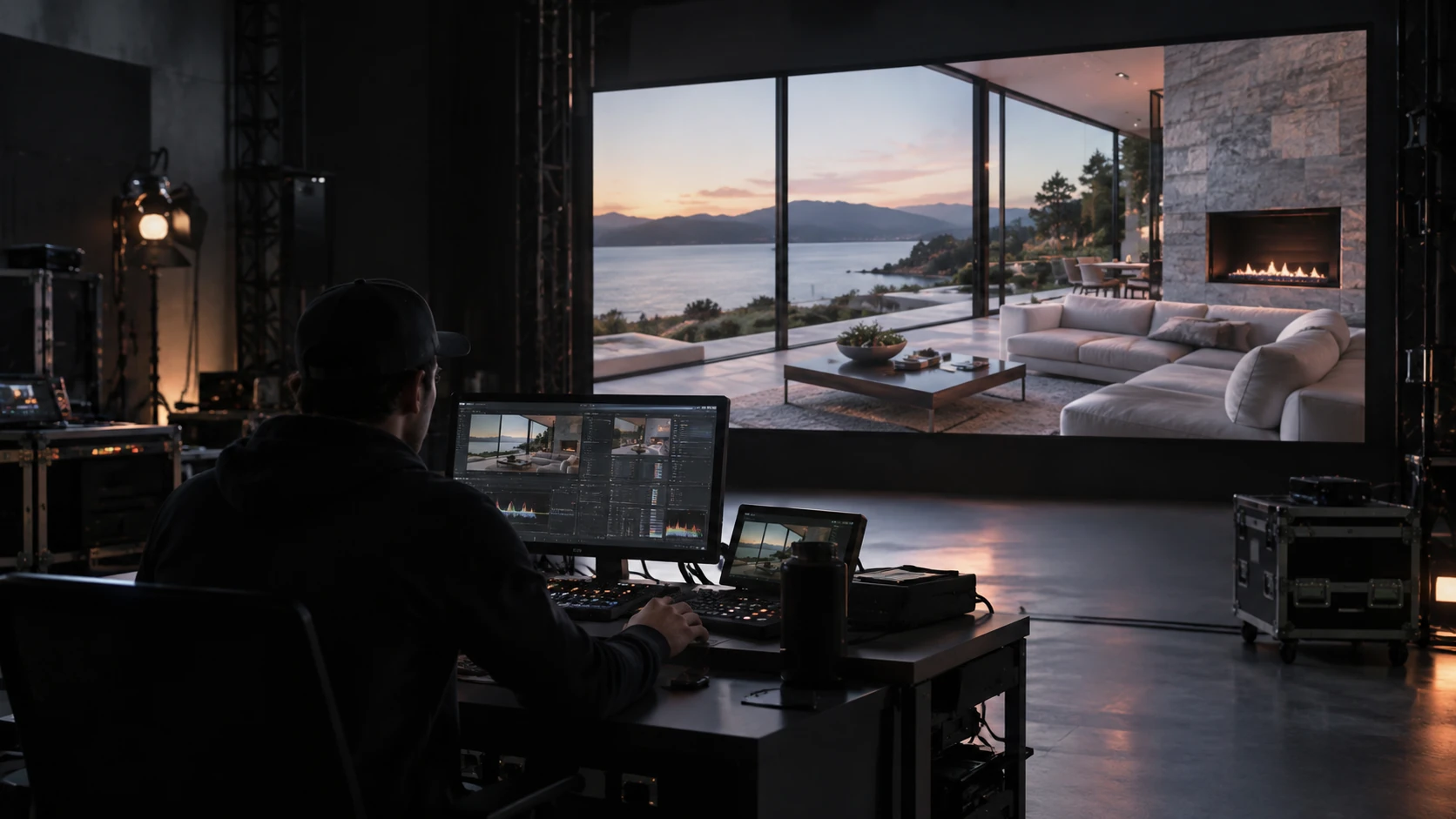
For broadcast stages, a processor that supports disciplined calibration and stable routing often makes life easier. For XR stages, the processor has to stay predictable when the Unreal pipeline changes shot by shot. For camera-critical work, the safest choice is usually the one that fits the full signal chain with the least friction, even if the feature list looks less flashy.
A fine-pitch COB display can be a fit when the stage needs close camera work and stable image quality, but the screen family alone does not solve processor selection. Check the wall, the pipeline, and the control workflow together before you buy.
Map nDisplay to the LED Wall
nDisplay is the coordination layer that maps viewport output to physical wall coordinates across a cluster of PCs Unreal Engine’s nDisplay overview. That matters because nDisplay is not just "the Unreal part" of the setup. It is the handoff between software rendering and the stage surface the camera sees.
In a working virtual production LED wall setup, the Unreal team, processor team, and wall team all touch the same image path. If output mapping is off, the wall may still look acceptable from a distance, but the camera will reveal framing drift, frustum mismatch, or a scale problem that is hard to ignore. Small errors matter more once the image is captured through a lens.
Agree who owns the render configuration, processor routing and physical wall map. Before the camera test, put the wall pixel map, viewport layout, frustum configuration and reference settings in one handoff record. If a setting changes, the next team should be able to see which version they are using rather than reconstructing it from memory.
A good sign-off path is practical, not ceremonial. Confirm the wall layout, check that the processor routing matches the mapped output, then verify that the Unreal frustum lines up with the camera view you expect to shoot. If any one of those steps changes later, the whole handoff should be retested.
Match Pixel Pitch and Viewing Distance
Pixel pitch is a planning choice, not a magic spec. It affects how close the camera can get before moiré becomes noticeable, but the safe distance depends on lensing, framing, set geometry, and how the wall is used in the shot. Practical guides for VP studios often place common pitch decisions in a rough mid-fine range rather than a single fixed number pixel pitch planning guide virtual production studio spec guide.
Use this section as a check, not a rule book:
- If the wall is frequently on camera in close shots, lean toward tighter pitch and verify moiré behavior early.
- If the wall is mainly a background or is seen from farther away, the pitch can usually be less aggressive.
- If lenses, blocking, or camera distance change often, test the stage with the actual capture setup instead of relying on a spec sheet.
- If you are unsure, compare the expected shot distance against the wall’s real-world appearance under camera, not just in room light.
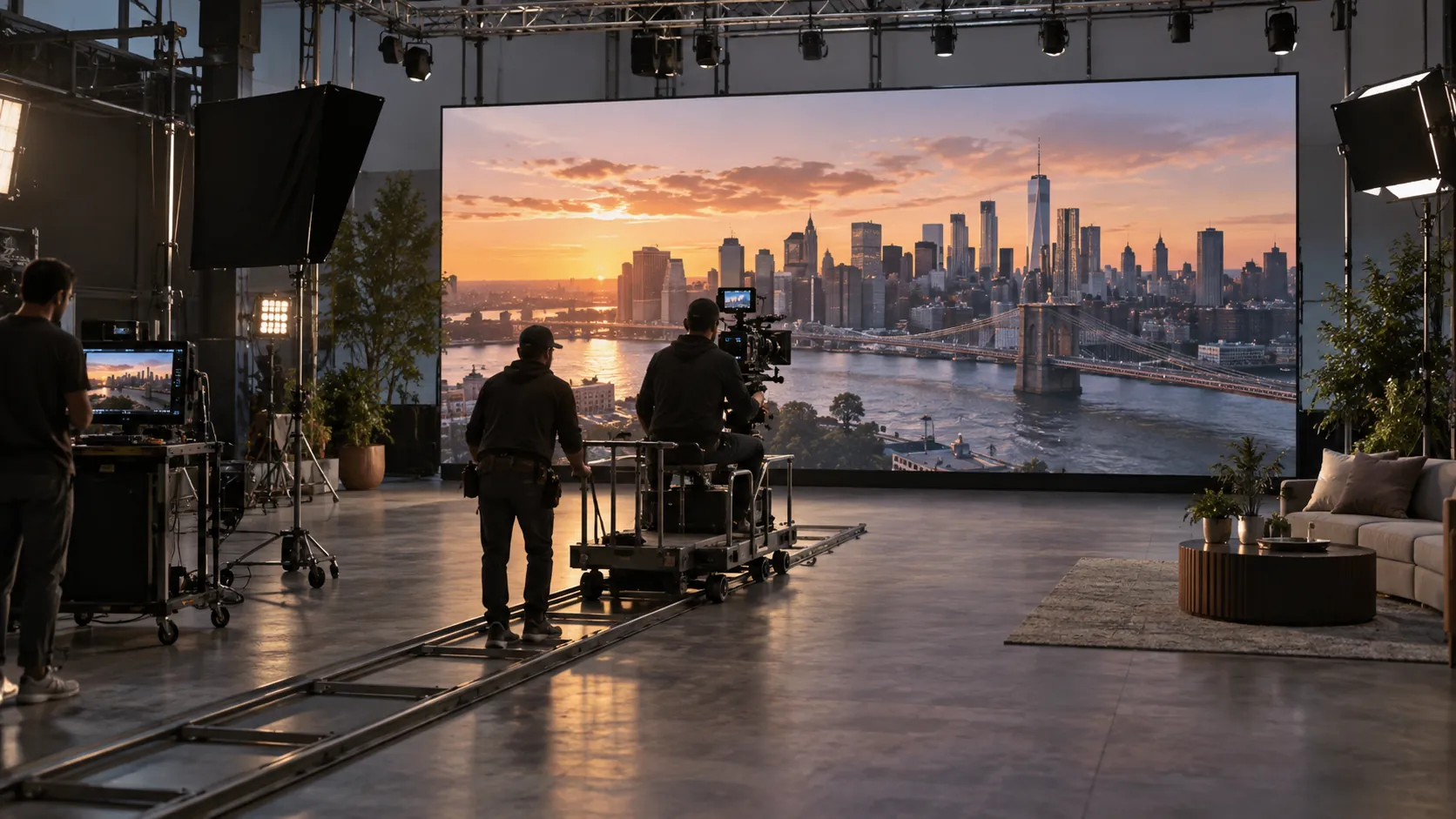
This is where teams often overspend. It is easy to buy more resolution than the stage actually needs, but that does not automatically improve the shot. The better question is whether the chosen pitch fits the camera distance and the kind of framing you plan to use most often.
Commission and Validate Before Shoot Day
Commission the system with the camera and content intended for the shoot. The nDisplay workflow material is a software-workflow reference; the actual sync hardware and timing method depend on the selected build. Record the accepted settings so the next shoot can start from a known configuration, then work through these checks:
- Verify reference and sync paths.
- Confirm frame-rate settings across the camera, processor, and render cluster.
- Check output mapping against the actual wall build.
- Play the real content pipeline, not a stripped-down test file.
- Rehearse with the camera and lens package you plan to use on the shoot.
- Recheck color, brightness, and consistency under show conditions.
If something fails, recheck the layer that owns it first. Timing problems usually sit with sync or reference paths. Framing problems usually sit with mapping or nDisplay handoff. Image consistency problems often show up only when live camera conditions reveal what a bench test missed.
Ask suppliers to demonstrate the proposed wall and processor with your camera format, lens range and sample content. Keep the accepted configuration with the test notes, then use the LED-volume calibration drift guide to plan checks between shoots. This makes the purchase discussion about repeatable footage, not just a list of display specifications.
Final Takeaway
A strong virtual production LED wall setup is less about chasing the fanciest spec and more about lining up the workflow. Genlock handles timing when camera-critical work demands it, processor choice should fit the real signal chain, and nDisplay has to map cleanly to the wall. If any one layer is treated as optional, the stage usually pays for it later. Start with the checklist, test under camera, and only then lock the final configuration.
FAQs
Do Virtual Production LED Walls Need Genlock?
Often, yes for camera-critical work, but not as a universal rule for every wall. The real question is whether your stage design needs the camera and display to stay locked to the same timing reference. If the wall is mainly playback or monitoring, the timing requirement may be less strict, though the rest of the signal chain still has to be verified.
What Should You Check Before Choosing a Processor for nDisplay?
Check how the processor handles your real source chain, output mapping, calibration workflow, and latency sensitivity. The best fit is the one that works with the camera, Unreal output, and wall layout without creating extra handoff problems. A processor that looks powerful on paper can still be the wrong choice if it complicates integration.
How Do You Decide the Right Pixel Pitch for a VP Stage?
Start with camera distance, lens choice, and how often the wall appears in close shots. Then test the stage under the actual capture setup, because moiré and image artifacts depend on the full geometry, not pitch alone. The best choice is usually the one that balances camera cleanliness with build cost and flexibility.
Why Do Sync Issues Still Happen After Genlock Is Enabled?
Because genlock solves only one part of the system. Problems can still come from routing, processor timing, frame-rate mismatch, or a mapping error between Unreal and the wall. If the issue survives a sync check, move through the pipeline one layer at a time instead of assuming the reference signal is the only culprit.
Can a VP Wall Be Commissioned Without a Full Camera Rehearsal?
You can bench-test the system, but a full camera rehearsal is still the safer final step. The live signal chain can expose frustum mismatch, color shifts, or motion behavior that a desk test will not show. If the wall is booked for production, treat the rehearsal as part of readiness, not as an optional extra.