

The wall looked right at the start of the shoot, but a later take has a tint shift or a visible seam. Before recalibrating the whole volume, compare the current setup with the approved reference: wall state, camera settings, timing and color pipeline. A repeatable check helps the crew find what changed and get back to the intended look.
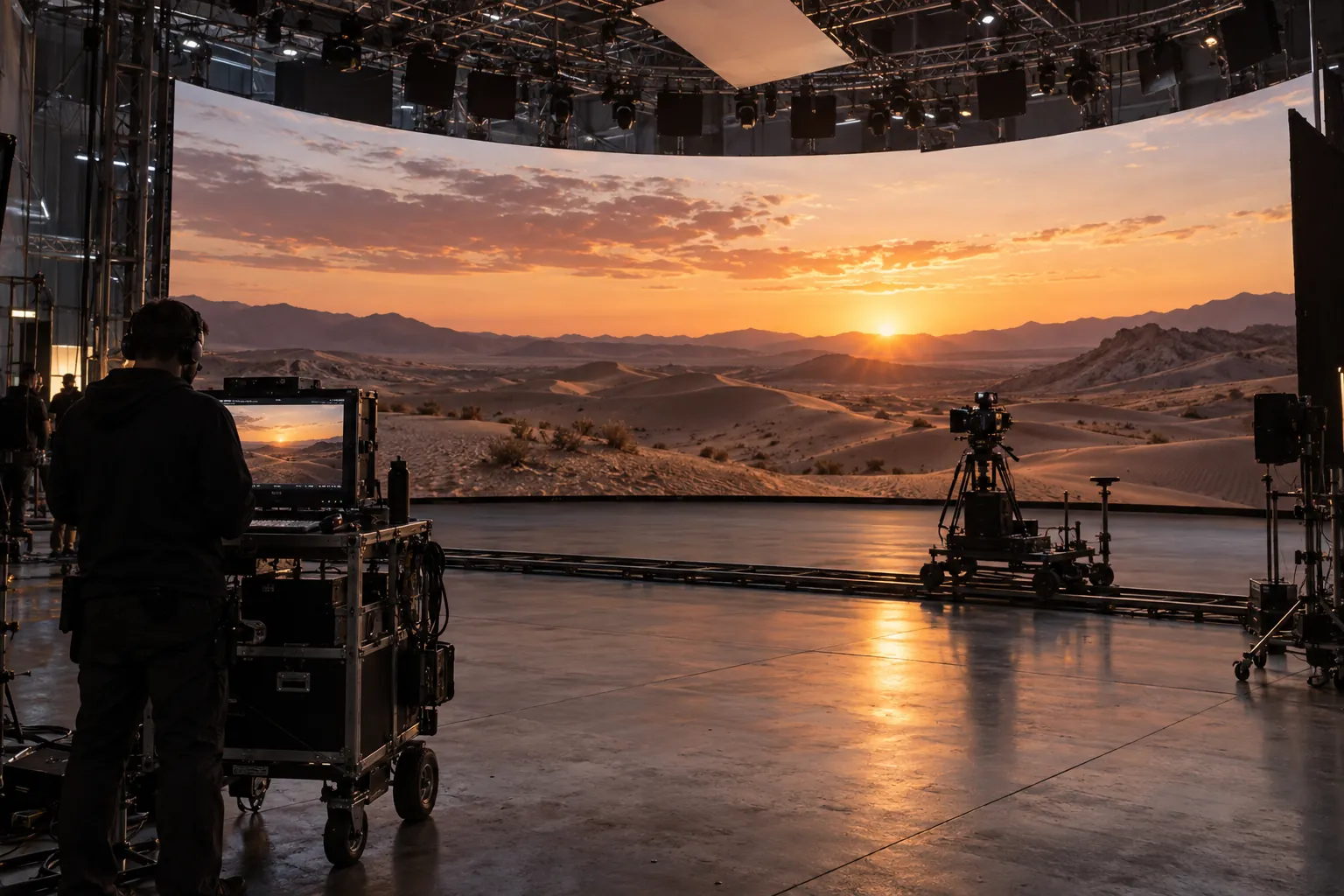
Why XR LED Volumes Drift
The first thing to understand is that an XR wall can drift even when the initial calibration was correct. Long production days add heat, runtime, and handling changes that can shift color, brightness, or panel uniformity over time. Netflix’s virtual production guidance calls out thermal change during long runs as a real cause of LED calibration shift, which is why LED volume calibration drift should be treated as an operational issue, not a setup checkbox.
In practice, the drift you notice may not look dramatic at first. A wall can be slightly warmer in one area, a little dimmer at the edges, or uneven enough that the camera sees a mismatch before the crew does. Timing or sync problems can also make the image look unstable, so the symptom matters as much as the cause. The goal is not to guess which layer is "bad," but to narrow the problem fast enough to keep the next take camera-ready.
Keep one approved reference with the wall configuration, camera path and operating conditions. When the image changes, record the affected area and compare like with like. A reference captured with a different exposure, LUT or camera position may explain the difference before the wall needs adjustment.
How to Detect Drift Before It Shows on Camera
For most crews, the best early warning is a simple baseline check that repeats the same way every time. Compare the current wall state against a known approved look, then scan more than one area of the volume so you are not fooled by a clean center section and rough edges. If your team only checks by eye from the stage floor, you can miss the very shifts that become obvious in frame.
Reference Checks at Call Time
Start with a stored reference or approved calibration state. That might be a reference patch, a previous camera frame, or a documented look that the crew agrees is correct. The point is to compare against something repeatable instead of memory. If the wall does not match the baseline before the first take, you already have a warning that drift may be building.
Uniformity Checks Across the Wall
A uniform wall is easier to trust, but uniformity can change in patches after heat, movement, or a long pause. Look for brightness differences, tint shifts, seam visibility, and panel-to-panel variation across the full surface, not just the center. This is where long-shoot drift usually becomes visible first, because a small difference across several panels can add up into a camera-visible mismatch.
Camera-Based Verification
ARRI’s virtual production color management guidance is useful here because it reinforces a simple rule: verify through the camera path, not only with your eyes on the stage floor. Camera-based verification in virtual production matters because what looks close enough to a person standing at the wall may still fail once the lens, exposure, and viewing angle are part of the chain. For LED volume calibration workflow decisions, the camera is the final check that matters most.
Keep timing checks separate from color correction. Moving bands or pulsing call for the scan-line and synchronization workflow; a stable tint or brightness mismatch calls for a look at the calibration data and color path. This avoids trying to correct a timing symptom with a color adjustment.
When the check itself needs help distinguishing the wall from the imaging chain, moiré is the classic example of a camera-path symptom that is easy to misread as a wall problem: the XR LED volume moiré prevention guide is on the same site and covers pitch, processor and camera rules; it complements but does not replace the drift checks above.
Correction Workflow for Drifted Walls
When drift shows up, the safest move is to isolate before you adjust. Do not jump straight to a full recalibration unless the wall clearly needs it. Start with the affected area, confirm whether the symptom is wall-localized or system-wide, and change one variable at a time so you do not hide the real cause.
- Confirm the wall is running the current version of its panel calibration and uniformity data file. Loading an outdated or wrong mapping can produce wall-wide "fake drift" that disappears after the correct file is restored.
- Identify the affected layer first. If the issue is local to part of the wall, treat it differently from a problem that appears across the whole camera path.
- Check genlock and sync next if the image looks unstable rather than merely uneven. That matters because timing issues can mimic drift even when the wall itself is not the only problem.
- Recheck the color pipeline if the wall is stable in timing but still reads wrong in frame. Netflix’s color management chain is a good reminder that color is a chain, not a single setting.
- Adjust brightness or color in a controlled way, then verify against the baseline again before moving to the next change.
- Escalate to deeper recalibration only if the issue survives a clean, documented correction pass.
The main mistake is stacking fixes. If you change sync, color, and wall settings at the same time, the next test may look better without telling you which layer actually solved the problem. That creates repeat work on the next shift.
Genlock, Sync, and Color Pipeline Checks
When drift-like symptoms appear, the quickest diagnosis is usually to separate wall-side uniformity from system-side instability. The table below is a practical triage aid, not a hard ranking of technical importance.
| Issue area | Check first | Typical clue | What it helps separate |
|---|---|---|---|
| Wall-side uniformity | Compare the wall against the approved baseline across several areas | Localized tint, brightness, or seam changes | A panel or section problem versus a whole-chain issue |
| Genlock / sync | Confirm timing behavior in the camera path | Image instability, tearing-like behavior, or motion that does not hold cleanly | Sync instability versus a wall-only calibration change |
| Color pipeline | Review the approved color path and settings | The wall is stable, but the image still reads wrong on camera | Color handling issues versus a physical wall drift |
The Broadcast Bridge’s virtual production coverage is helpful background on why genlock belongs in this diagnostic split: timing problems can create symptoms that look like display instability, so the fix is not always on the wall itself (see The Broadcast Bridge’s virtual production genlock context). The practical takeaway is simple. If the symptom is system-wide, check timing and pipeline first. If it is localized, start with wall uniformity.
When comparing C-Rock touring or C-Shine Plus rental configurations, include the repeated setup and calibration workflow in the demonstration. Ask how the team saves and restores the accepted panel map and settings between deployments.
Preventing Drift Across Long Shoot Runs
The best way to reduce repeat LED volume calibration drift is to standardize the parts of the workflow that different crews can repeat the same way. That means a consistent startup sequence, written handoff notes, and a maintenance cadence that fits the length and sensitivity of the shoot. You are not trying to eliminate drift completely; you are trying to catch slow change before it reaches the camera.
Startup and Warm-Up Consistency
Use a consistent startup and warm-up sequence before capturing the reference. Record the manufacturer’s recommended warm-up procedure and the operating conditions used for acceptance. The next crew should be able to repeat that sequence instead of deciding from memory when the wall is ready.
Environmental and Rigging Variables
Heat, airflow, movement, and physical changes can all affect how a wall behaves over time. If the stage layout changes, if airflow shifts, or if cabling and rigging move between shoots, note it in the log. That way, the next drift check has context instead of guesswork. This is especially useful on long-run productions where the problem may not show up until several hours after the wall was first approved.
Shift Handoff and Drift Logs
Write down what was checked, what changed, what was corrected, and what still needs attention. A short handoff note is often enough to prevent the next crew from repeating the same troubleshooting loop. For multi-day productions, that record becomes the difference between a clean resumption and a morning spent rediscovering yesterday’s fix.
Maintenance Cadence That Sticks
Set a cadence that the crew can actually follow under time pressure. That might mean a quick pre-call verification, another check after a major pause, and a deeper review when the stage conditions change. The cadence should be realistic for the crew size and the amount of drift your setup tends to show. If the routine is too heavy, people skip it.
What to Standardize Before the Next Shoot
Before the next call, standardize the baseline reference, the person who owns verification, the correction sequence, and the handoff log. Capture one approved look, note the conditions that made it valid, and define when the team should recheck instead of guessing. If you need a paper trail for maintenance or approval, keep the documentation attached to the same run sheet every time. We recommend treating that checklist as part of the workflow, not an optional extra.
Keep the baseline, owner and recheck points on the run sheet. If the stage configuration itself is changing, revisit the LED wall setup guide before carrying old presets into the new build. That makes the next drift check a comparison with a known state, not a fresh investigation.
FAQs
How Often Should an XR LED Volume Be Rechecked for Drift?
The right cadence depends on shoot length, crew turnover, and how sensitive the setup is to heat or timing changes. A better rule is to check at predictable moments, such as pre-call, after long pauses, and after any meaningful stage change, instead of waiting for visible trouble on camera.
What Is the Difference Between Drift and a One-Time Calibration Mistake?
A one-time mistake is usually wrong from the start, while drift appears after the wall has been running and conditions change. If the problem shows up later in the day or across multiple shifts, that points more toward drift. If it is wrong immediately, start by checking the original setup and saved baseline.
Can Genlock Problems Look Like Color Drift on Camera?
Yes, timing or sync issues can create instability that looks like a display problem, especially when you are watching only the recorded image. That is why the first pass should separate wall-side uniformity from timing and pipeline checks before anyone assumes the color balance itself is the root cause.
What Should Be Logged After a Drift Correction?
Log the time, affected area, what was changed, who approved the fix, and whether the wall returned to baseline after verification. That record helps the next shift avoid repeating the same adjustments and makes it easier to spot recurring patterns across long productions.
Can a Better Workflow Reduce the Need for Frequent Recalibration?
Yes, a stronger workflow can reduce unnecessary recalibration by making checks, handoffs, and escalation more consistent. It will not eliminate drift risk, but it can prevent small changes from turning into bigger resets and help the team correct the right layer sooner.
What Should Be Standardized on an XR Stage in 2026 Before Drift Becomes a Shoot-Day Problem?
Lock four things before the first call: one saved baseline look with the conditions that made it valid, a named owner for the verification check, a fixed correction sequence that changes one layer at a time, and a shared drift log that survives shift handoff. Those four items keep a slow change from turning into a full recalibration mid-shoot.