

XR LED wall setup breaks most often when the processor, calibration, sync, and camera settings do not work together. If you are buying or renting a virtual production LED wall, judge the system by camera readiness, not by panel specs alone. The fastest way to reduce reshoots is to check workflow fit first, then verify calibration, genlock, refresh behavior, and moiré risk on camera.
Start With the Failure Modes
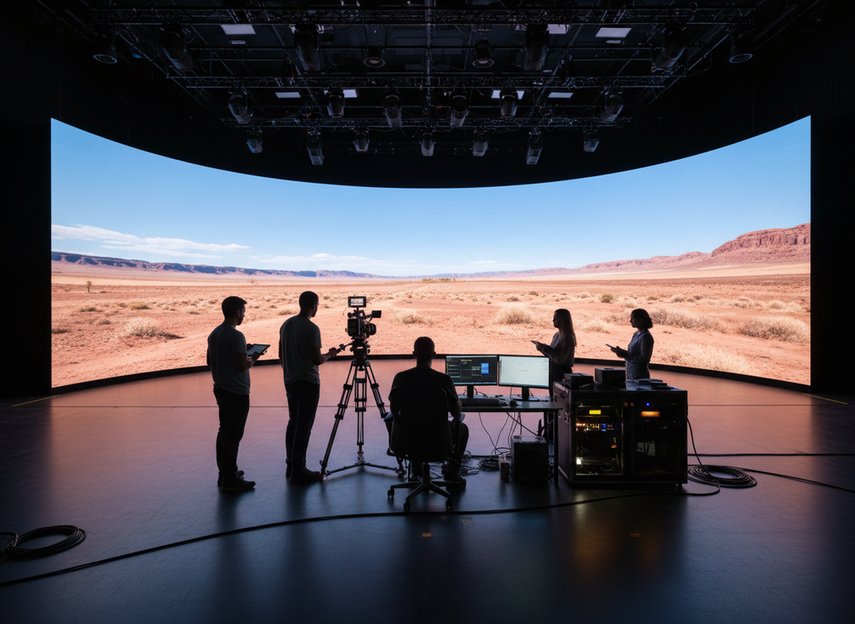
For an XR stage, the wall is only one piece of the system. Processor choice, calibration, sync, camera matching, and content pipeline checks all affect whether the wall looks clean in person and usable on camera. The real failures usually show up as visible artifacts, color mismatch, unstable timing, moiré, or flicker, which is why a virtual production LED wall setup should be judged by shoot risk rather than by a spec sheet.
That shift matters because a wall can seem fine during a quick walk-through and still fail once the camera rolls. If the team waits until principal photography to find the problem, the fix costs time, crew attention, and often a reset of the whole day. Use this article as a preflight workflow: choose the processor for the job, lock in calibration, confirm sync, then test the camera chain before the schedule hardens. If you need a browsing path for broader stage inventory, start with rental stage LED options.
Choose the Processor for the Workflow
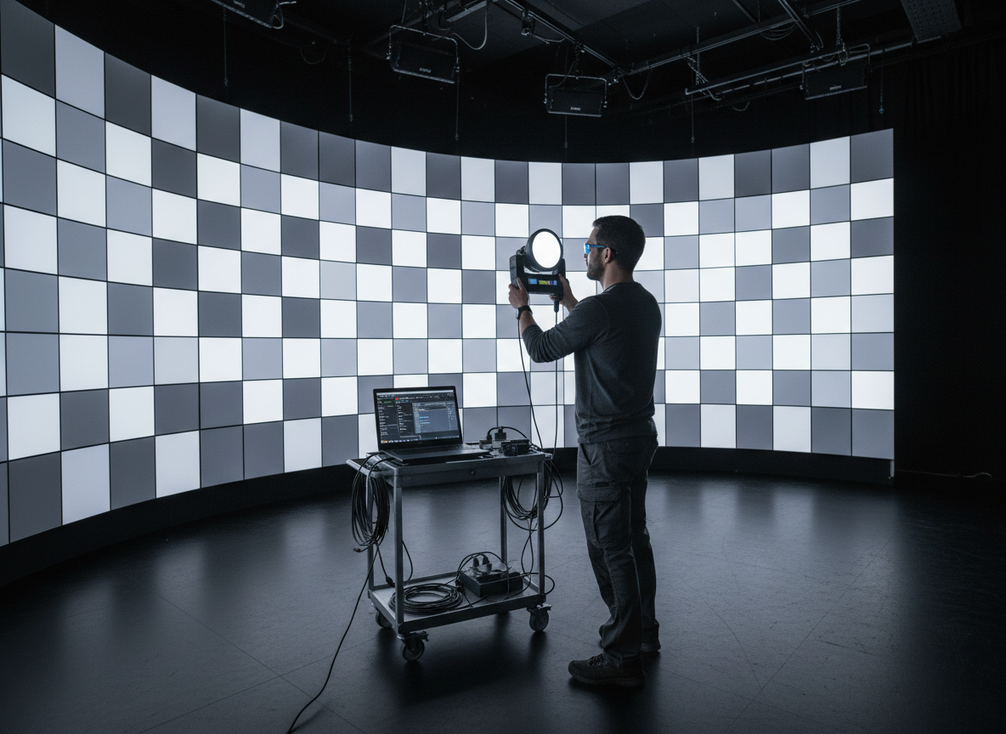
The best processor for an XR LED wall is the one that fits the full workflow, not the one with the loudest marketing claim. In practice, that means stable output handling, reliable mapping, sensible control granularity, and compatibility with the camera and sync chain you already plan to use. For most teams, the right question is not "Which processor has the most features?" but "Which processor is least likely to create timing or control friction on set?"
A good processor should support the way your wall will actually be run. If the stage uses multiple nodes, changing content sources, or tighter camera coordination, stability and operator control matter more than flashy feature lists. The virtual production LED processor selection question should also include the broader operating chain, because a feature only helps if the team can use it consistently under production pressure.
Use this checklist before you commit:
- Confirm that the processor supports the wall’s mapping and control needs.
- Verify that the timing behavior fits the camera workflow you plan to run.
- Check that the software and control habits match how your operators already work.
- Treat phase or fine-timing controls as useful only if they fit the wider sync plan.
- Make sure the processor can be validated in prep, not only in a vendor demo.
If your setup is a small, predictable volume, a simpler processor may be enough. If the workflow involves more nodes, tighter camera coordination, or repeated show changes, choose the option that is easier to keep stable under pressure. That is why a fanless rental LED option or a high-precision touring LED option can be relevant as navigation paths, but only if the broader workflow fit is confirmed first.
Lock in Calibration Before Camera Tests
Calibration should make the wall consistent enough that the camera can trust what it sees. A camera-facing calibration workflow is needed because eye-based checks can miss metameric mismatch, meaning the wall can look acceptable to people in the room while still recording inaccurately. The practical goal is even brightness, stable color, and panel-to-panel consistency that holds up under the actual camera package.
Start with a clean physical setup. If the wall has obvious panel, cable, or mapping issues, calibration will only hide the problem for a moment. Then check uniformity across brightness and color, looking for drift, tint shifts, or patch-to-patch variation. Calibration is not a magic fix for upstream hardware or sync problems, so it works best when the system is already mechanically and electrically sound.
A practical order of operations is:
- Confirm the wall is installed, powered, and mapped correctly.
- Make sure control access is ready and signal paths are stable.
- Run the wall uniformity check for brightness and color.
- Fix visible mismatches before full content playback.
- Recheck on camera after any meaningful change.
The most common mistake is stopping after the wall looks good to the eye. The better test is whether the wall still looks right through the lens. After calibration, shoot a short validation pass and look for any change in color, brightness, seams, or banding before you call the setup ready.
Set Sync and Refresh for Camera Safety
Refresh and sync are where many XR setups either become camera-safe or start producing visible artifacts. A useful baseline is the industry refresh baseline of 1920Hz for on-set infrastructure, but that should be treated as a checkpoint, not a universal promise. The exact safe setup still depends on the camera package, shutter behavior, wall hardware, and timing chain.
Genlock and hardware sync matter because multi-node XR workflows need their timing locked together. In Unreal’s genlock and hardware sync workflow, the camera, render engine, and sync source all need to stay aligned so frames do not drift or tear relative to one another. If that lock is missing, the problem may appear as flicker, rolling artifacts, or unstable output rather than an obvious full failure.
| Setup Variable | What To Check | Why It Matters On Camera | Common Risk If Missed |
|---|---|---|---|
| LED wall refresh rate | Confirm the wall’s refresh rate and whether it is in a range the camera workflow can tolerate; use 1920Hz only as a reference point. | Refresh timing affects how the camera sees the wall during exposure. | Flicker, scan banding, or visible wall rendering in camera. |
| Genlock / hardware sync | Verify the camera, render engine, and sync-capable display or processor are actually locked to the same reference. | Hardware sync keeps exposure and frame timing aligned across devices. | Phase mismatch, tearing, or frame-to-frame instability. |
| Timecode path | Confirm the camera and render engine timecode path is present and readable where the workflow expects it. | Timecode helps downstream systems stay coordinated and traceable. | Misaligned records and harder matching in post. |
| Input format consistency | Confirm the incoming signal format matches what the workflow is set to expect. | Mismatched format can break lock or make the sync source unusable. | Sync failure or incorrect timing behavior. |
| Live test on set | Shoot a brief test and inspect for flicker, tearing, or wall visibility under the actual camera settings. | Real camera behavior is the safest proof of whether the setup is clean. | Issues only appear during the shoot if testing is skipped. |
| Recheck after changes | Reconfirm sync settings after any hardware, frame-rate, or camera change. | Small changes can alter the timing relationship enough to matter on camera. | A setup that was stable earlier can become unreliable after a change. |
For most crews, the safe move is to treat refresh and genlock as a camera-test requirement, not a paperwork item. If the wall passes on the bench but fails in the lens, the setup is not ready yet.
Reduce Moiré and Flicker on Set
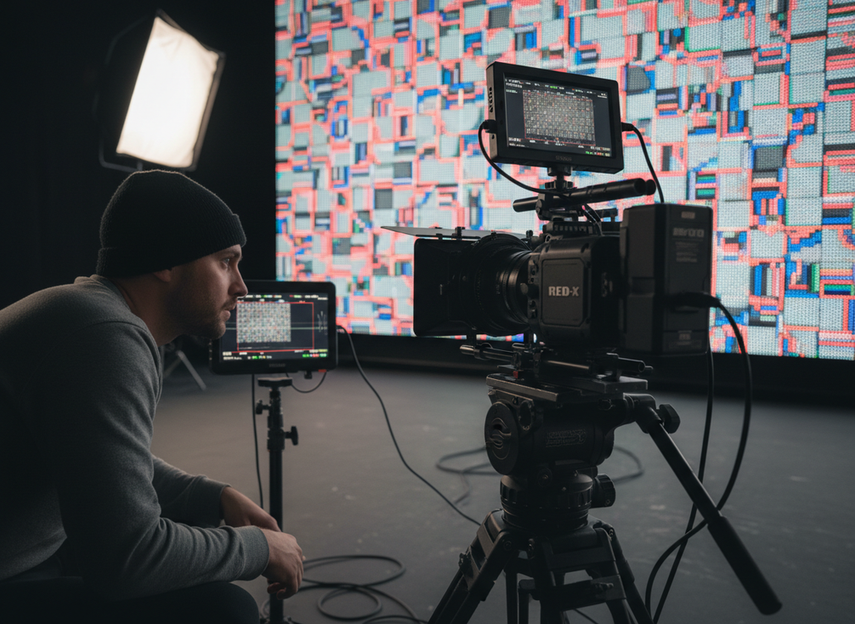
Moiré and flicker are easy to confuse, but they do not usually come from the same place. Moiré is a spatial sampling problem: the LED pixel grid and the camera sensor grid interfere with each other.moire from pixel-grid interaction Flicker is more often a timing problem, which means a wall can look stable to the eye and still show artifacts in camera.
A practical first-pass order helps. If the issue looks like a pattern or shimmer that tracks with framing, start with distance, focus, lens choice, and panel pitch. If the problem looks like brightness pulsing, scan-line behavior, or shot-to-shot instability, check genlock, shutter interaction, playback stability, and any recent signal-chain change. Distance and focus can reduce moiré risk, but they do not eliminate it universally. That is also why a smooth-looking wall is not enough proof that the camera will be happy.
When flicker shows up, do not assume the wall is simply "bad." First check whether the sync path is intact and whether the camera settings still match the wall timing. Then review the content playback path, because unstable playback can mimic a sync issue. In some setups, a brightness change may reduce visible flicker, but that is a mitigation, not a cure.
The useful rule is simple: treat moiré as a camera-and-pattern problem and flicker as a timing problem until testing proves otherwise. If you change lens, distance, shutter, refresh, or sync, retest on camera before you move on.
Run a Final Camera-Ready Checklist
Before principal photography, do one last pass with the actual camera settings and planned framing. Use calibration test patterns, a short live scene, and a close review of seams, tearing, color drift, moiré, and flicker. The goal is to catch problems while there is still time to fix them, not after talent, crew, and client are already waiting.
- Save the processor settings and confirm they persist after a reboot.
- Recheck calibration after any signal, mapping, or physical change.
- Confirm the sync path is still locked and stable.
- Run a short camera test at the planned lens and framing.
- Look for moiré, flicker, tearing, or panel mismatch.
- Verify the wall still behaves correctly in the intended content pipeline.
- Recheck once more if any setting changes after the first pass.
If the wall passes this checklist, you have a better basis for signoff. If it fails, return to the earlier step that changed, then retest instead of pushing into the shoot with a known problem. For broader stage planning, we can help you compare rental-stage display paths before the next build decision.
FAQs
What Processor Features Matter Most for an XR LED Wall?
Focus on workflow fit first: stable signal handling, mapping control, calibration support, and compatibility with the camera and sync chain. If the team cannot control the processor predictably during prep, the setup can become fragile during the shoot. The best choice is usually the one that integrates cleanly with your existing operating habits and testing process.
How Do You Tell If Moiré Is Coming From the Wall or the Camera?
If the artifact changes with distance, focus, or framing, it is usually tied to the interaction between the camera and the LED pixel structure. If it changes with timing, shutter behavior, or playback stability, look more closely at sync and the signal chain. In practice, you need a camera test to separate the two cleanly.
Why Does an LED Wall Flicker Even When the Wall Looks Fine by Eye?
Human vision and the camera sensor do not sample the wall the same way. A wall can look stable in person while the camera reveals timing mismatch, scan behavior, or a sync problem. That is why camera-based validation matters more than a quick visual check when you are deciding whether the setup is ready.
Can Calibration Alone Make a Virtual Production Wall Camera Ready?
No. Calibration improves consistency, but it does not replace genlock, refresh checks, or a camera pass. A wall can be well calibrated and still show moiré or flicker if the timing chain is off. Treat calibration as one step in readiness, not the whole approval.
What Should Be Checked Before the First Camera Test on an XR Stage?
Check the processor settings, calibration stability, sync behavior, and the content path before the first serious camera pass. Then test at the planned lens and framing, because that is where many issues finally appear. If anything changes after the test, run the pass again before signoff.