

XR LED wall refresh rate is a camera workflow question: the panel spec matters, but the camera shutter, exposure, color profile, and processor settings decide whether the wall looks clean on set. If you are planning an in-camera VFX shoot, check the full signal chain and validate it with real footage, not just a spec sheet.
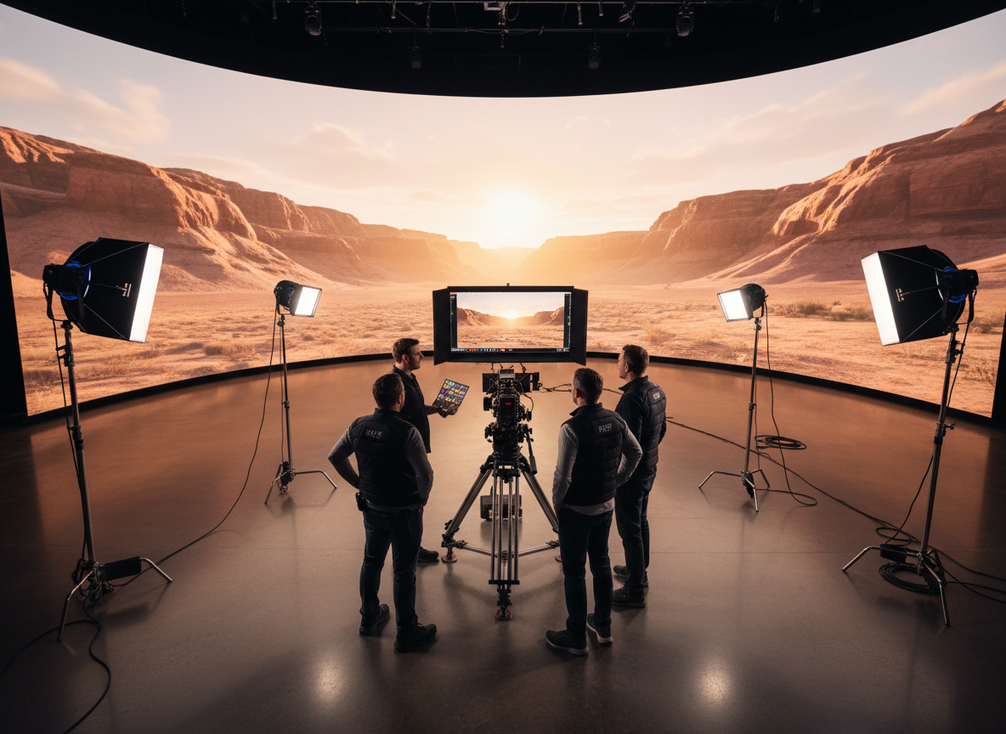
Why Refresh Rate Matters on Camera
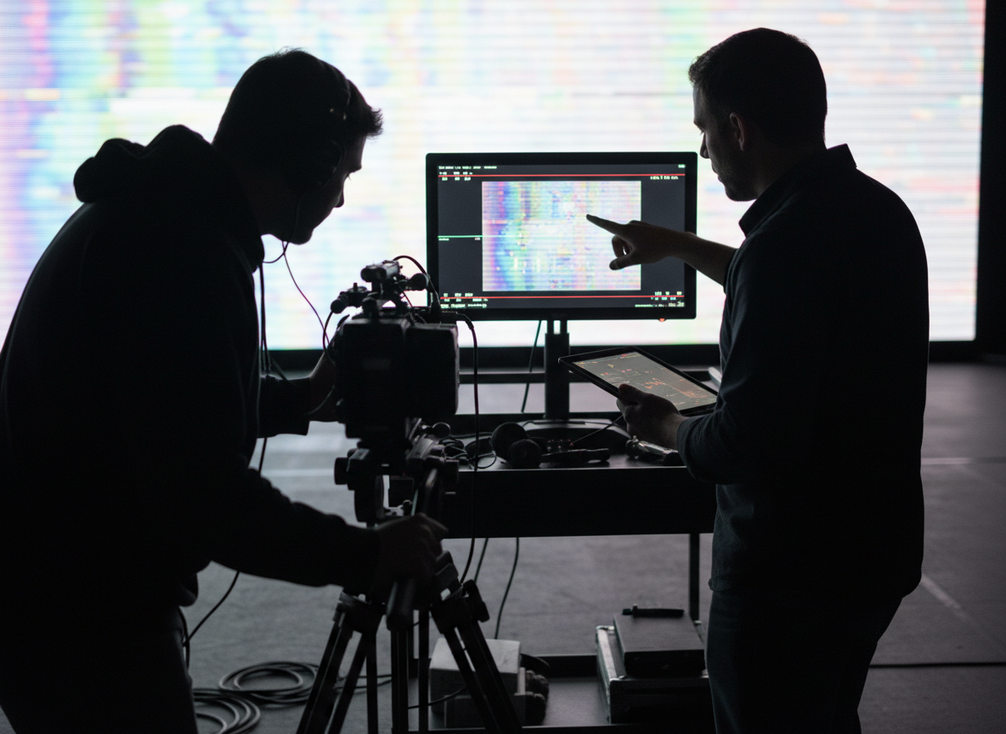
When refresh timing and camera timing are out of step, the result can be visible flicker, banding, vertical scan lines, or tonal shifts in recorded footage. That is why refresh rate is not just a display number; it is part of the imaging chain. The same wall can look fine to the eye and still fail on camera if the shutter behavior and LED timing do not line up. A real-world discussion of these refresh mismatch artifacts appears in the virtual production community.
For XR LED wall refresh rate checks, treat the wall, the camera, and the playback path as one system. If the wall looks stable in person but the test clip still shows banding, the setup is not ready yet, even if the spec sheet looks strong.
How Color Workflow Affects Capture
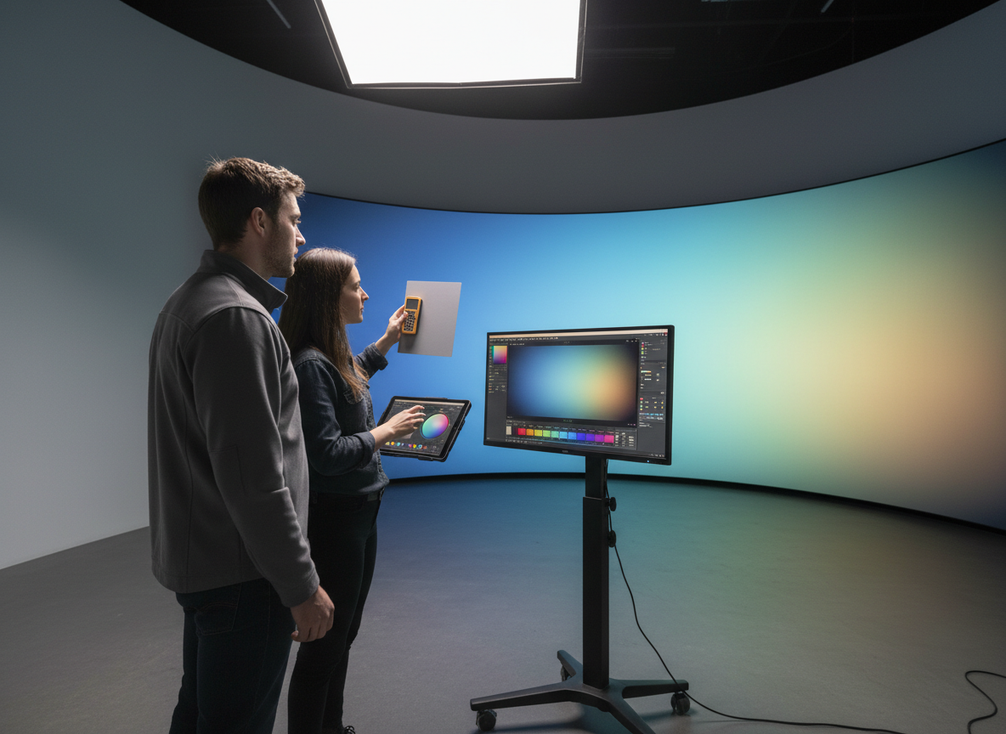
Color matching is just as camera dependent as refresh timing. In an XR LED wall color workflow, the wall, processor, camera profile, and calibration steps all need to work together or the recorded image can drift from what the crew sees on the floor. Light Illusion’s guidance on camera-profile color matching is a reminder that this is a workflow problem, not a one-click calibration task.
Color Space and Camera Profile Matching
If the wall’s color handling and the camera profile are not aligned, skin tones can shift, neutrals can lean warm or cool, and saturated graphics can lose the look the creative team expected. That does not always mean the wall is wrong in a general sense. It usually means the capture pipeline was not matched tightly enough for the shot.
For most shoots, the check that matters is recorded footage, not live room viewing. If the playback chain, processor output, and camera profile agree, you are more likely to get a usable match. If they do not, the camera can exaggerate the mismatch even when the wall looks acceptable to the crew.
Gamma, White Point, and Exposure Balance
Gamma controls how contrast is rendered, so a setting that feels comfortable for the room can still look too flat or too harsh on camera. White point and exposure should be tuned together, because a wall that is too bright can clip highlights, flatten detail, or push colors into a look that is hard to recover later.
Make changes in small steps and review them in camera, not just on the wall control screen. ACES is one widely recognized color management framework for keeping devices consistent, but it is a reference point, not a universal requirement for every volume.
Brightness Management for Comfortable Capture
Brightness is often the setting teams are most tempted to push. Higher output can make a wall easier to see in a bright room, but it can also change the apparent color and shadow detail in the recorded image. That matters in broadcast studio LED volume workflows, where comfort for the room and comfort for the camera are not always the same thing.
If raising brightness improves visibility but makes the camera clip or wash out, reduce it and re-test before you change anything else.
Processor Choices That Support Stable Sync
Processor selection matters because it affects sync handling, signal routing, preset management, and how repeatable the setup feels for operators. Brompton’s virtual production documentation describes shutter-synced refresh control as one way to align LED behavior with camera shutter behavior, which can reduce visible artifacts when the camera setup is validated correctly.
The processor is not a standalone fix. A better processor can make timing and workflow easier to manage, but it cannot replace camera-side testing, correct exposure, or calibration discipline. A guarded processor feature comparison is useful only as a feature reference, not as proof that one ecosystem will solve every shoot.
| Decision Factor | Why It Matters On Camera | What To Check | Common Pitfall |
|---|---|---|---|
| Sync handling | Better timing alignment can reduce visible artifacts | Camera shutter behavior, sync tools, repeatability | Treating sync as a processor-only promise |
| Signal routing | Stable routing lowers the chance of last-minute surprises | Input paths, output paths, failover behavior | Assuming every route behaves the same under load |
| Preset management | Repeatable presets help crews restore known-good settings | Save, recall, and lock procedures | Rebuilding the same setup manually every time |
| Testability | Easy testing shortens pre-shoot validation | Test patterns, camera review, documentation | Approving settings without footage review |
| Workflow fit | The best setup is the one the crew can repeat | Operator skill, media server handoff, change control | Choosing features no one on set can use confidently |
For stable sync, the best processor is the one that fits the camera, the crew, and the shot plan. If the team cannot explain how the settings are being verified, the hardware is not the real problem yet; the process is.
Match Requirements to Your Production Type
Different production types change the risk level and the amount of validation you need. An XR stage, a broadcast studio, and a rental install can all use similar hardware classes, but the booking decision is not the same.
- XR stage work: Prioritize sync testing, camera-profile matching, and repeatable presets. The more critical the shot, the less you should rely on “close enough.”
- Broadcast studio capture: Prioritize comfortable brightness, stable color, and operator repeatability. Live pressure makes small setup mistakes more expensive.
- Rental deployment: Prioritize pre-booking verification, clear handoff notes, and enough adjustment time for the crew to test with the actual camera package.
If your schedule allows real validation, you can take a more tuned approach. If the setup is a fast rental with limited adjustment time, the safest choice is the one with the clearest documentation and the fewest unknowns. That is where a focused browsing path like rental stage LED options can help you narrow the category before you commit.
For teams comparing category fit, Chipshow’s touring LED volume options and broadcast-grade indoor option pages are useful starting points. Use them as navigation, then verify the camera workflow requirements separately.
A Practical Setup Checklist Before Shoot Day
- Verify the signal path first. Confirm the media server, processor, cabling, and output chain are stable before you touch image settings.
- Load test content that resembles the real shoot. Patterns alone are not enough if the final scene has skin tones, graphics, or moving backgrounds.
- Review refresh behavior with the actual camera. Look for flicker, banding, scan lines, and tonal shifts in recorded clips, not just in live view.
- Check color matching in camera. Confirm the wall, camera profile, and gamma handling together, then adjust white point and brightness in small steps.
- Document the final settings. Save the preset names, camera notes, and playback steps so the next shoot does not start from zero.
Before shoot day, use real camera footage, confirm the signal chain, and save the working settings. If you need a starting point for category selection, Chipshow’s rental LED display catalog can help you compare options before you validate the camera match.