

Virtual production LED wall flicker can look like a shot problem, a wall problem, or both. The fastest way to narrow it down is to separate time-based flicker from pattern-based moiré, then test camera timing first, wall settings second, calibration third, and only then decide whether the setup is ready for a real take.
What Flicker and Moiré Look Like on Camera
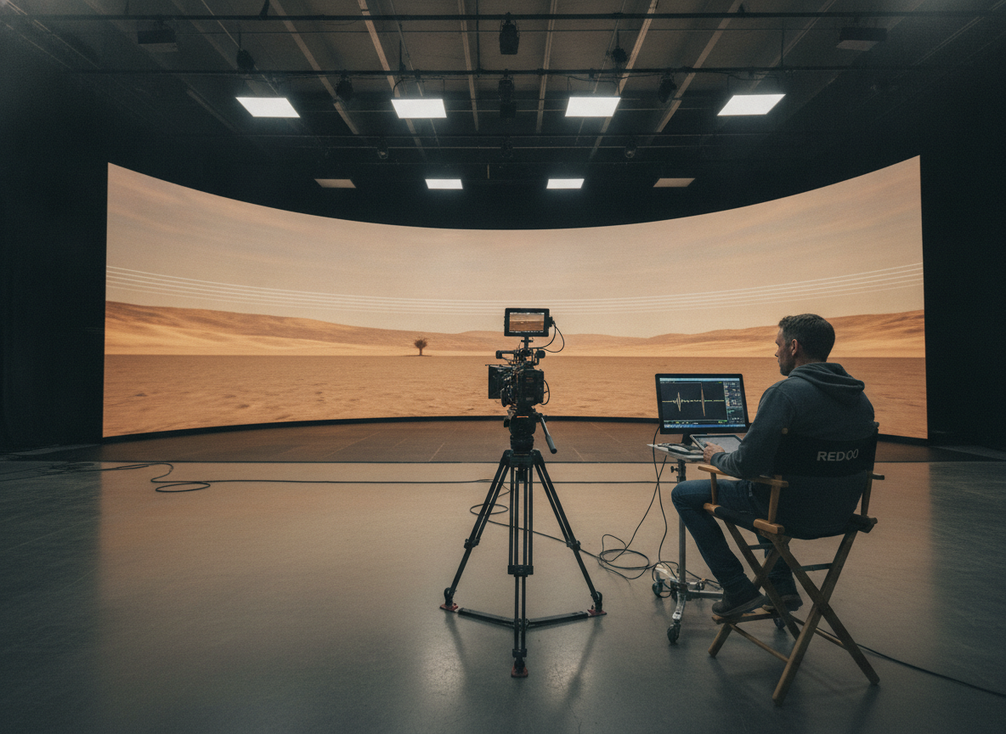
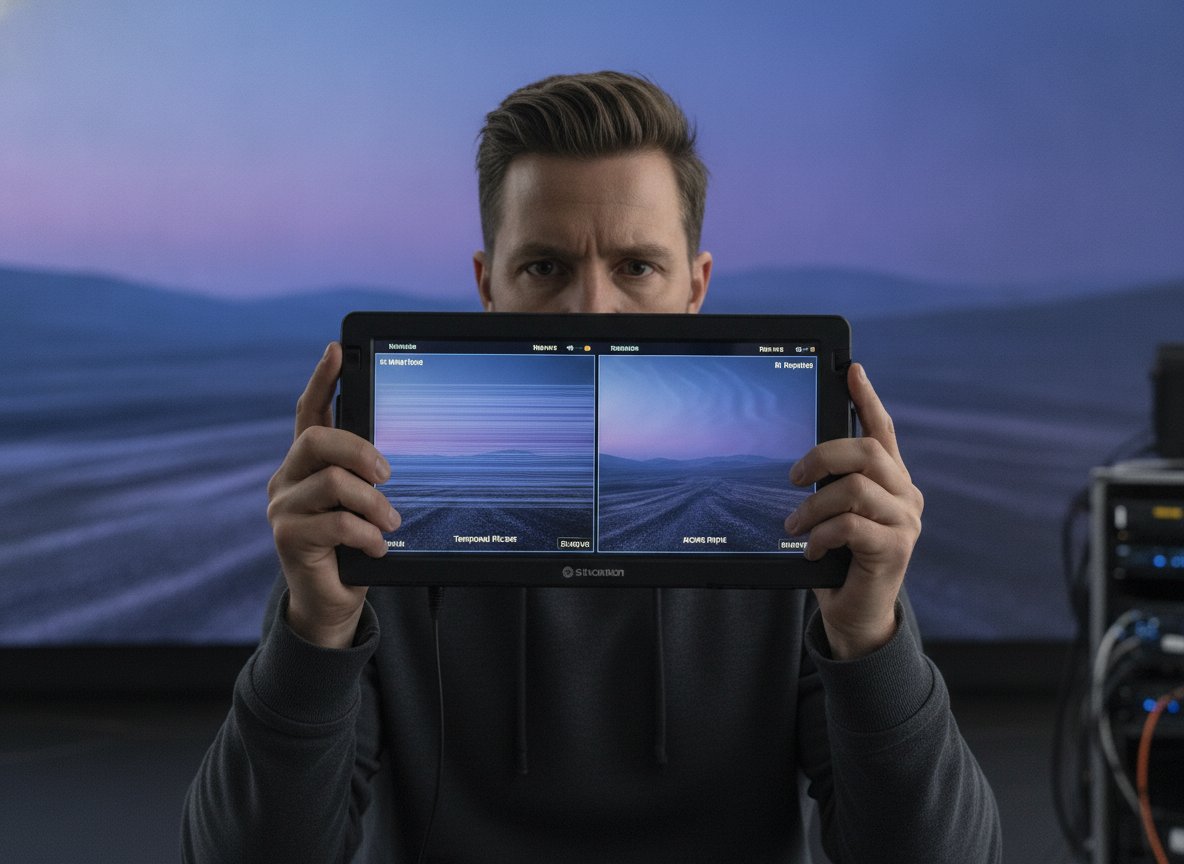
If the wall looks steady to your eye but not in playback, you are usually dealing with a camera-visible mismatch rather than a single bad setting. Flicker is the time-based version, where brightness seems to pulse, band, or strobe across frames. Moiré is the pattern version, where the camera sensor grid clashes with the LED pixel pattern and creates ripples, waves, or crawling texture.
That difference matters because the fix path changes. A wall can appear clean in person and still fail on camera, especially once motion starts. The Broadcast Bridge explains the sensor-grid and LED-pixel interaction behind moiré, which is why fine detail, fill factor, and viewing geometry can matter so much in LED wall moiré camera settings.
For most crews, the practical clue is simple: if the artifact changes with shutter, frame rate, or movement, think flicker first. If it changes with framing, focus, distance, or angle, think moiré first. In many shoots, both show up together, so treat the wall as a system instead of hunting for one magic setting.
When teams need a broader starting point for wall formats and rental-stage use cases, the rental and stage LED display category is a useful navigation path, but it is not a substitute for a camera test.
Quick Visual Cues
- Flicker usually feels temporal: pulsing, banding, or unstable brightness in motion.
- Moiré usually feels spatial: ripples, interference patterns, or crawling texture on edges and fine detail.
- If the artifact only appears on recorded playback, do not trust the naked-eye check alone.
Why Camera and Wall Settings Clash
The main reason virtual production LED flicker happens is timing mismatch. Netflix’s virtual production guidance calls out multiplexing and slow refresh behavior as common sources of on-camera flicker, especially when camera motion makes the mismatch easier to see. In plain terms, the wall may be updating in a way the camera does not sample cleanly, so the artifact is baked into the recorded image even if the wall seems stable in the room.
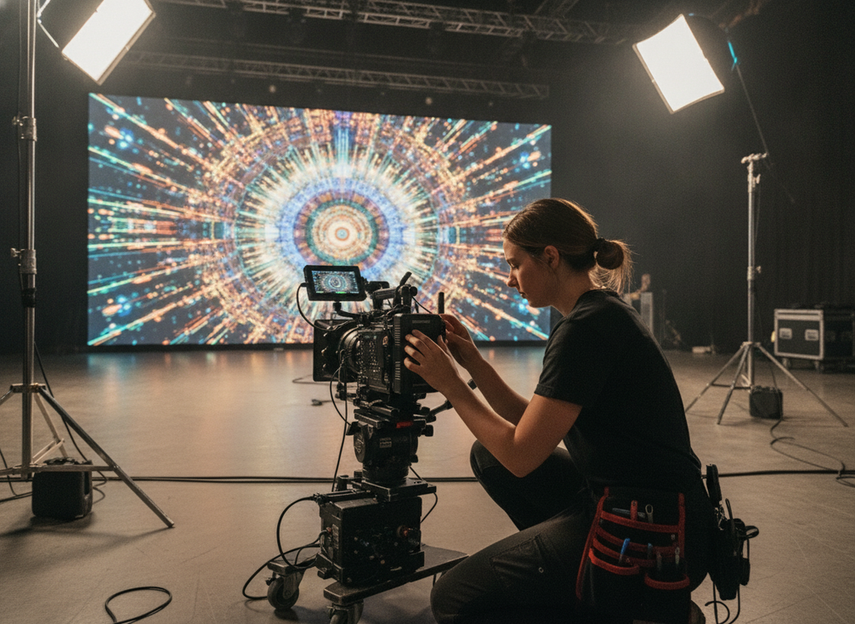
SMPTE research also reinforces that calibration and capture conditions affect how the wall appears on camera, not just how it looks to the eye. That matters because a technically capable wall can still show ugly results if color transforms, focus depth, or wall tuning are not aligned with the shot.
There are four common mismatch zones. Frame rate and shutter timing can fight the wall’s refresh or scan behavior. Lens choice, distance, and angle can make moiré much more obvious. Calibration gaps can make the wall appear less stable on camera than it should be. And a noisy signal path can add another variable that hides the real cause.
The practical takeaway is not that every wall needs the same fix. It is that the more variables you change at once, the harder it becomes to know which one actually helped. For a premium touring or rental-stage build, a C-Shine-Plus browsing path can help you compare stage-oriented options, but the camera proof still comes from the test clip.
Refresh Rate, Scan Behavior, and Drive
A higher refresh rate may reduce visible artifacts, but it is not a universal cure. Netflix’s guidance on flicker and scan behavior makes the important point: scan pattern and multiplex behavior matter too. Two walls with similar headline refresh numbers can behave differently once the camera starts rolling.
What this means on set is simple. If the wall is already close, refresh-related tuning can help. If the mismatch is severe, the camera timing or the signal path may be the bigger issue.
Shutter Settings and Frame Timing
Shutter speed or shutter angle can clash with wall timing and show up as banding, pulsing, or strobing. Frame rate choices should be tested as a pair with shutter settings, not as separate decisions. In practice, the best result usually comes from small changes and a short reference clip, not a broad rewrite of the camera package.
Lens, Distance, and Viewing Angle
Moiré often gets worse when the shot is tight, the lens is resolving a lot of fine detail, or the camera is positioned at a problematic angle to the wall. CTS AVL notes that distance, focal length, and slight softening of focus can all reduce visible moiré. That is why composition is part of the troubleshooting process, not just a creative choice.
Calibration and Content Pipeline
Calibration can make the difference between a wall that looks fine in person and one that behaves on camera. SMPTE’s work on LED-wall virtual production shows that focus depth and color transformation affect the captured result, which is why a wall that is "good enough" for the room may still need more tuning for the lens.
If your test content has very fine repeating detail, it can also exaggerate moiré. A cleaner pipeline, simpler test graphics, and a more controlled capture setup make it easier to see whether the wall itself is the problem or whether the shot is just overloading the system.
Dial in Camera Settings First
Start on the camera side because it is usually the fastest way to isolate the problem. If you can clean up the shot with a small timing or framing change, you save yourself from chasing wall-side settings that were never the main issue.
- Confirm the symptom on a short test clip.
- Change shutter timing first, then record the same frame again.
- Pair frame rate and shutter as one test, not two separate guesses.
- If moiré remains, adjust distance, angle, focal length, or a slight focus softening.
- Re-shoot after each change so you know what actually improved the result.
That order matters because it keeps the fix visible. If you adjust shutter, framing, content detail, and wall settings all at once, you may end up with a better clip and no idea why. For crews who want a quick first-pass concert and touring LED solution path, the useful question is not which model sounds impressive, but whether the current camera setup can produce a stable reference shot.
A small field workaround sometimes mentioned by technicians is diffusion or an OLPF-style approach, but that should stay a fallback, not the first move. In stubborn cases it can help break up moiré, but it is still a heuristic and should be treated that way.
Tune the Wall Settings and Signal Path
Once the camera is mostly stable, move to the wall-side settings. This is where teams often chase too many variables too quickly. The safer rule is to change one wall setting at a time, then re-test the same shot under the same conditions.
Start with the settings most likely to affect visible artifacts: refresh behavior, scan or drive mode, and brightness. Then check the signal chain. A cleaner source-to-processor-to-wall path is often more important than people expect, especially if there is scaling, conversion, or processing in the middle.
Bright test content can make artifacts easier to see, but overly sharp or highly repetitive graphics can also create false alarms. Use diagnostic content that helps isolate the issue instead of making the wall look worse than the final scene will.
For crews building around event and stage workflows, the C-Rock category can serve as a broader comparison path, while the actual green light still depends on playback stability, not category branding. If you are evaluating related rental-stage options, we can also help you compare stage display paths before the shoot day.
Refresh, Brightness, and Fine Detail
If the wall is still flickering after camera-side cleanup, look at refresh, scan, and brightness together. A brighter wall can make certain artifacts easier to notice, and overly aggressive drive settings can expose timing issues that were hidden at lower output. That does not mean dimming is always the answer. It means brightness is a diagnostic variable worth testing.
Processor, Signal Chain, and Input Path
Before you blame the panels, verify the cleanest possible path from source to processor to wall. Scaling, frame conversion, or a weak input chain can reveal instability that was not obvious earlier in the workflow. If a change upstream makes the shot cleaner, you have learned something useful. If it does not, you can move back to panel and calibration settings with more confidence.
Validate With a Fast Pre-Shoot Check
The goal is not perfection in every move. The goal is a setup that stays clean enough for the planned shot list. The simplest way to confirm that is a short pre-shoot validation pass in the same room, with the same lighting, lens, and wall settings you plan to use for the real take.
Use a reference clip, review it in playback, and log every change you made. If the same clip stays stable across the planned camera movement, you are probably close enough to proceed. If the artifact keeps returning, go back one step at a time instead of widening the variable set.
A quick stop-go check works well:
- Shoot a short test clip.
- Review for banding, pulsing, ripples, or repeating patterns.
- Change only one camera or wall variable.
- Re-shoot the same framing.
- Keep the best-known settings documented for the shoot day.
For teams who want a deeper technical reference point, the H-Series rental LED display CB test report is a helpful follow-up when you are checking supporting documentation, but it should not replace the live camera test.
Final Takeaway
Virtual production LED wall flicker and moiré usually come from mismatch, not mystery. Start with camera timing, then move to wall behavior, calibration, and signal-path checks only after the camera is mostly stable. If a short reference clip stays clean under the planned shot, you are in good shape. If not, keep changing one variable at a time until you find the smallest stable setup.
If you are choosing gear or building a stage workflow, we recommend treating stability as a requirement, not a bonus. Use the live test first, then confirm the wall path before the shoot starts.
FAQs
Why Does an LED Wall Flicker on Camera?
The most common cause is a timing mismatch between the camera and the wall’s refresh or scan behavior. That is why a wall can look fine in the room but still pulse, band, or strobe in playback. If the artifact changes with shutter or frame rate, you are usually looking at flicker rather than moiré.
How Do You Reduce Moiré on an LED Wall?
Start with distance, angle, focal length, and slight focus softening. If the pattern is still there, simplify the test content and look at calibration and signal-path issues next. Moiré is often easiest to trigger with fine repeating detail, so the final scene can behave better than the test pattern if you avoid overloading the shot.
What Camera Settings Should You Try First?
Start with shutter timing, then test frame-rate pairing, then check framing and detail level. Do not change several variables at once. A short reference clip after each change is the easiest way to see whether the fix actually worked or just moved the artifact around.
Can Calibration Fix Flicker Without Changing the Camera?
Sometimes it helps, but not always. Calibration can improve how the wall appears on camera, especially when color or capture depth are part of the issue. If the main problem is timing mismatch, though, you will usually need a camera-side change too.
When Should You Stop Troubleshooting and Retest the Setup?
Stop when the same short clip stays stable across the planned framing and movement, or when you have changed several variables without a clear improvement. At that point, it is better to lock the best-known settings, log them, and retest in the same conditions than to keep guessing.
Sources
- Common Virtual Production Challenges & Potential Solutions – Netflix Partner Help Center
- Virtual Production For Broadcast: Video Wall Configuration – The Broadcast Bridge
- Hue-Preserving Color Transforms for LED Wall Virtual Production – SMPTE Journal
- The Moiré Effect on LED Walls and How To Prevent It – CTS AVL