

LED wall calibration drift management matters in 24/7 command centers because small color or brightness shifts can erode trust in the wall. The safest approach is to spot the symptom first, then trace whether the cause is software, heat, power, content, or module wear before you recalibrate.
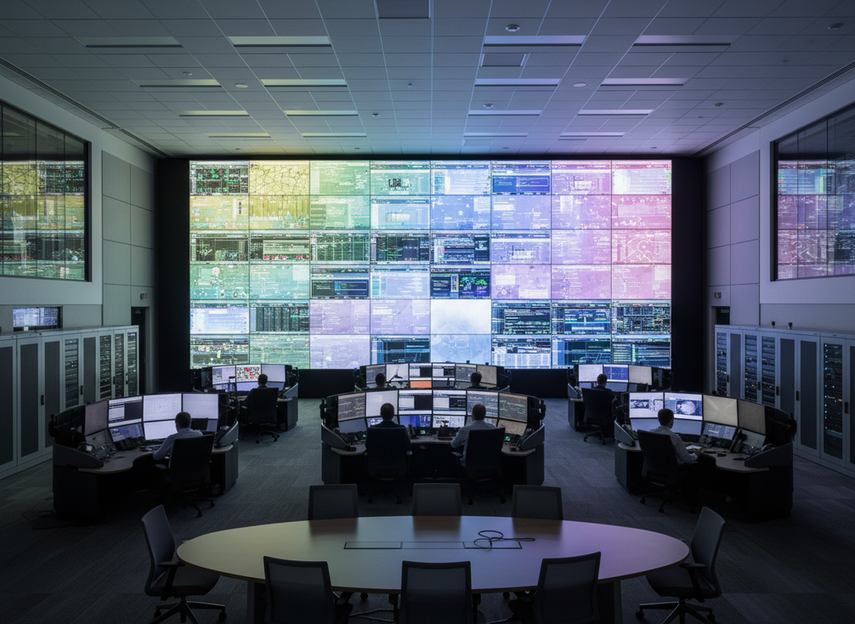
What Drift Looks Like in the Control Room
In a live room, drift rarely looks like a dramatic failure. It usually shows up as a tint shift, uneven brightness between neighboring panels, visible seams, or white areas that no longer look evenly balanced. Those changes matter more in command centers because the wall is always under attention, and the AVIXA standards frame uniformity and contrast as part of professional display performance.
A few practical clues help narrow the problem quickly:
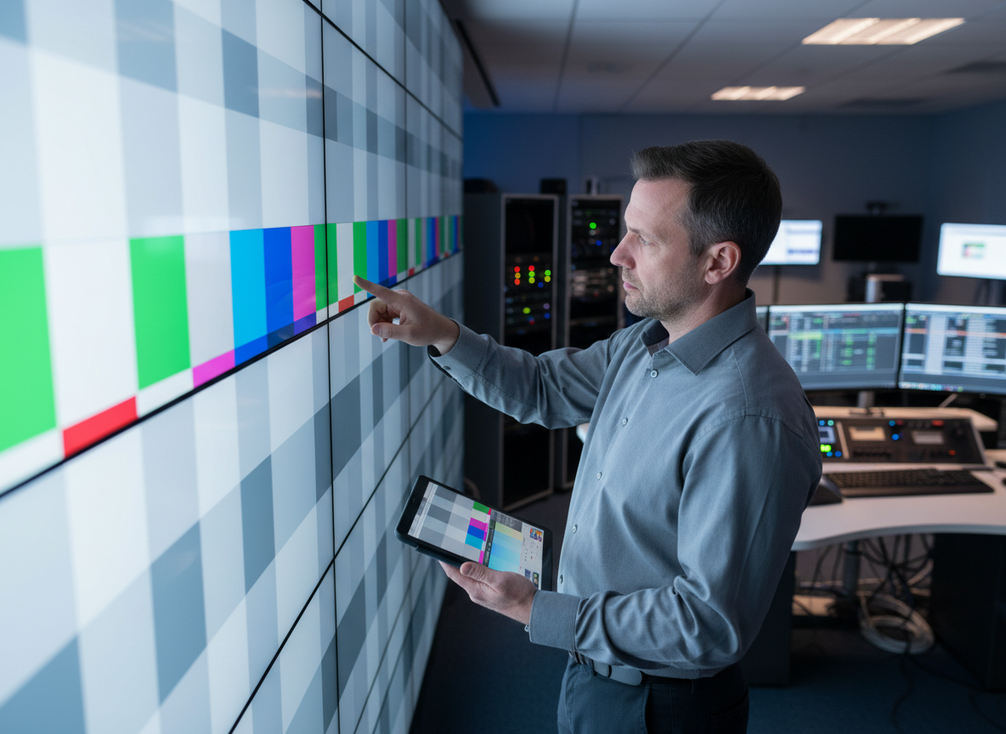
- If the mismatch is subtle but spread across several zones, treat it as a drift check, not a one-off content issue.
- If the problem is concentrated in one cabinet or row, log the location before changing settings.
- If the wall looks different after warm-up, a shift change, or a maintenance reboot, note the timing as well as the symptom.
For command center LED wall uniformity correction, the first record should answer three questions: where the issue appears, whether it is local or wall-wide, and what changed right before it started. That short note makes the next troubleshooting pass faster.
| Visible pattern | Likely next check | Escalation cue |
|---|---|---|
| Slight color or brightness drift across adjacent zones | Recheck recent calibration, input chain, and environmental stability | Pattern returns soon after correction |
| Noticeable seam mismatch or patchy uniformity | Compare module alignment, refresh state, and per-zone calibration history | Mismatch affects more than one area or keeps spreading |
| Drift that appears after warm-up or long runtime | Review thermal conditions, power stability, and runtime-dependent behavior | Symptoms worsen during extended operation |
| Change isolated to one section or cabinet | Inspect local module, cable, or controller path | Issue stays localized after recalibration |
| Wide-area shift that affects the whole wall | Confirm global calibration baseline and signal consistency | Whole-wall shift persists across checks |
Why LED Walls Drift Over Time
The biggest mistake is treating every visible mismatch as a calibration problem. Long-term LED wall color stability usually changes for more than one reason, and the fix depends on which layer moved first. One common source is uneven aging of RGB emitters, where red, green, and blue components do not fade at exactly the same rate. That can slowly change white balance and visible color across the wall, especially after long operating hours.
Another group of causes is operational rather than physical. Heat load, airflow, power variation, content changes, or processor settings can all make a healthy wall look inconsistent. Broader troubleshooting guides also group drift causes across software settings, ambient conditions, and hardware aging, which is useful as a diagnosis map when the exact issue is still unclear. In practice, that means you should not jump straight to recalibration when the symptom may be coming from a signal-path change or a room-condition shift.
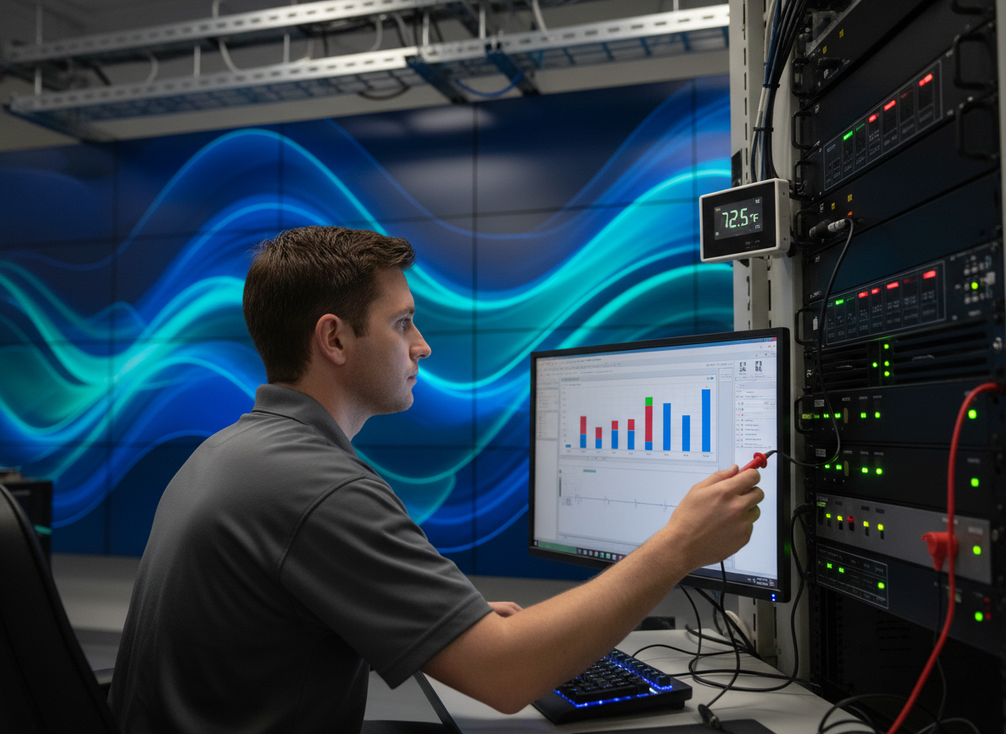
The best reading rule is simple: if the pattern follows the content or the signal chain, check upstream first; if it stays with the same section of the wall, suspect the local module, thermal conditions, or aging. That is where the uneven RGB aging explanation helps, because it separates a slow hardware change from a settings problem.
Software Drift Versus Hardware Change
Software drift usually means the stored calibration state no longer matches the room’s current look. That can happen after a controller update, a settings change, or a maintenance reset. Hardware change is different. It shows up when a module, cable, or emitter has aged or degraded enough that the same settings no longer produce the same result.
A useful rule of thumb is this: if a small adjustment temporarily fixes the wall but the mismatch returns after the next runtime cycle, the wall may have a deeper physical or environmental cause. Software can help, but it should not be the only explanation when the same asymmetry keeps coming back.
Thermal Load and Operating Hours
For 24/7 rooms, heat and runtime often shape the problem more than teams expect. A wall may look acceptable at startup and then drift after it has been on for several hours. Uneven airflow can make one zone age differently from another, which makes the mismatch easier to see during long shifts.
That is why long-term LED wall color stability is not just about one perfect calibration pass. It is also about whether the room stays consistent while the wall runs. If one area becomes warmer, dimmer, or more color-shifted after the room has stabilized, check the environment before assuming the display itself has failed.
Power, Content, and Input Chain Effects
A change in power quality, source content, or processor settings can mimic drift without any panel defect. Mixed brightness levels, dimming profiles, and upstream signal changes can exaggerate seams or tint differences. If the wall changed right after a source switch, firmware update, or routing change, confirm the chain before repeating calibration work.
This is where a disciplined diagnosis matters. The same visible problem can point to a different fix depending on whether the issue follows the signal, the room, or the module.
A Practical Calibration Workflow
A useful workflow for LED wall calibration drift management is: inspect, adjust, verify, then document. That order keeps teams from overwriting a usable baseline with a guess.
- Inspect the wall in its normal operating state.
- Confirm whether the problem is local, section-wide, or wall-wide.
- Check content settings, signal path, power state, and visible physical issues before changing calibration values.
- Make small corrections in the order that matches the symptom, such as brightness first, then white balance, then local uniformity.
- Verify the result across the full wall, not just the area that looked wrong.
- Save the final settings and record what changed.
SMPTE’s recognized test patterns are useful here because they give operators a consistent way to inspect color and brightness without relying on a moving live feed. The point is not to chase perfection in a test scene. It is to confirm that the wall still behaves evenly when the room is running normally.
Inspect Before You Adjust
Start with a visual map of the problem. Note whether the shift is in a single row, a cabinet cluster, a corner, or the whole wall. Then check for recent changes in content, processing, or power. If the problem appeared after a scheduled change, document that before touching calibration values.
This step is especially important in 24/7 command center LED wall maintenance, because a quick fix can hide the real cause. If the calibration baseline is overwritten too early, the next shift may have no clean comparison point.
Correct Uniformity in the Right Order
Do not make broad changes when a targeted correction will do. A small brightness correction may solve one problem, while a white-balance adjustment may be the real need in another. If the issue is local, focus on the local zone first instead of reworking the whole wall.
If the same mismatch keeps returning after a controlled adjustment, stop treating it as a software-only problem. That is usually the point where module inspection, alignment review, or service support becomes the better next move.
Verify and Document the Result
Always verify the wall under normal operating conditions, not just in an ideal test view. Save the corrected profile, note the date and time, and record the symptoms that led to the change. That record helps the next shift compare drift instead of starting over.
For mission-critical rooms, the value of documentation is simple: it prevents teams from repeatedly resetting to a bad baseline.
Routine Checks That Prevent Surprise Drift
You do not need to recalibrate constantly to stay ahead of drift. A better routine is to check the wall at shift changes, after maintenance work, and after any major content, power, or processing change. The goal is early detection, not endless retuning.
A practical checklist for 24/7 teams looks like this:
- Watch for new seam visibility, tint change, or brightness mismatch.
- Note fan, airflow, or temperature changes around the wall.
- Compare today’s look with the last saved calibration record.
- Log any repeat hot spots or sections that keep shifting first.
- Recheck after a restart or a scheduled maintenance window.
This monitoring habit works best when several people share the room. Without a log, one person’s "slight shift" becomes another person’s "normal," and the team loses the ability to trend drift over time.
When to Stop Recalibrating and Escalate
If the same problem comes back after a careful correction, recalibration may no longer be the right answer. Persistent asymmetry, localized defects, or a wall-wide shift that survives multiple checks usually points toward deeper inspection, not another quick software pass.
| Symptom pattern | Likely next check | Escalate when… |
|---|---|---|
| Recurring tint shift | Review calibration history and signal path | The shift returns after each correction |
| Wall-wide brightness loss | Check thermal load, power stability, and runtime behavior | The loss affects the full wall and does not normalize |
| Localized module mismatch | Inspect the cabinet, module, or cable path | The same area keeps drifting or stays visibly off |
| Drift after power change | Compare baseline settings with post-change behavior | The issue began only after power or routing changes |
| Drift after content change | Confirm processor and source settings | The wall looks stable with other content |
When you call service, bring the symptom log, the last known good settings, and a note about what changed before the drift appeared. That handoff can save guesswork.
For command rooms, the decision rule is straightforward: if the wall can be restored and held with a controlled adjustment, keep monitoring; if the same mismatch keeps returning, escalate before the next shift inherits a false baseline. If you are comparing long-term options, mission-critical environments usually need a maintenance plan that treats relapse as a signal, not a nuisance.
Keep the Wall Stable After Calibration
The best way to protect a corrected wall is to save the profile, assign follow-up ownership, and keep the room conditions as consistent as possible. Temperature, airflow, power quality, and content-change control all affect whether the baseline holds. A one-time fix is rarely enough in a 24/7 room.
Use this final check after every adjustment: save the profile, verify the full wall, log the change, and confirm who owns the next review. If you are evaluating a new build or a replacement path, compare your operating needs against mission-critical LED wall options or start a fit check with our command-center team.
FAQs
How Often Should a Command Center LED Wall Be Rechecked for Drift?
There is no safe universal interval to recommend. The right cadence depends on runtime, room temperature stability, and how visible a mismatch can be before it affects operations. A strong baseline is to check after shift changes, after any content or power change, and after maintenance work so you catch problems before they build.
What Is the Difference Between Calibration Drift and Uniformity Mismatch?
Drift is the change over time, while uniformity mismatch is the visible difference you see at a given moment. In practice, drift can cause the mismatch, but the troubleshooting move is different: drift management tracks what changed, and uniformity correction checks which zones now look out of step.
Can Software Calibration Fix Every Color Shift?
No. Software can correct some imbalance, but persistent shifts often point to heat, aging, power instability, or signal-chain changes. If a correction helps only until the next operating cycle, treat that as a clue to inspect the hardware or environment instead of repeating the same settings change.
Why Do Seams Become More Visible on Always-On LED Walls?
Seams stand out when brightness or color balance drifts between adjacent areas, especially under changing content or lighting. If a seam becomes more visible after warm-up, after a source change, or in one part of the wall first, that timing helps you decide whether to check the room, the signal path, or the local module.
Can a Maintenance Log Help Prevent Repeat Drift Issues?
Yes. A log helps teams compare the current wall state with the last good baseline, which makes recurring drift easier to spot. Record the symptom, the location, the correction used, and whether the issue returned after the next shift. That gives the next operator a real comparison point instead of a guess.