

Minimum refresh rate for a virtual production LED wall is not a single magic number. It is the combination of refresh, bit depth, shutter, sync, and scan behavior that has to survive your exact camera setup. If you are comparing walls for a stage build, start with the camera chain first, then judge the panel spec against the footage you actually need.
What Camera-Safe Specs Mean on an XR Stage
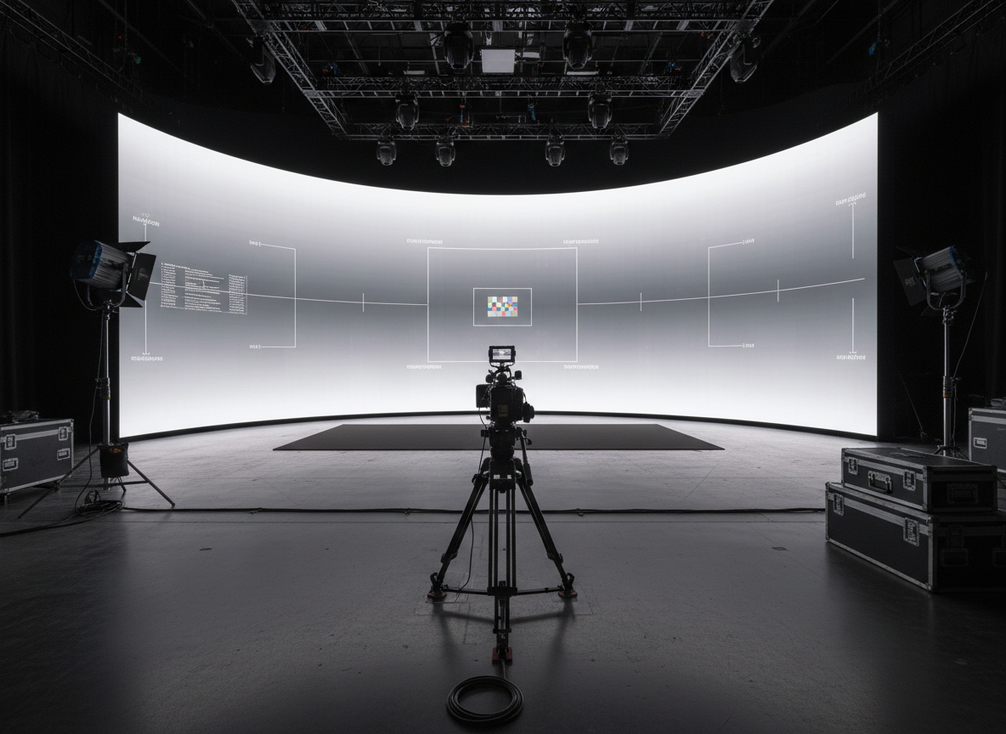
On an XR stage, camera-safe means the wall behaves predictably under production cameras. It does not mean the panel is automatically clean in every setup, and it does not mean a showroom demo will match a real shoot. The wall, camera, processor, and lighting all affect what lands on sensor.
That is why refresh rate and bit depth matter. Refresh rate changes how often the image updates, which affects visible flicker and scan behavior. Bit depth changes how smoothly tonal steps are rendered, which matters for gradients, shadow detail, and skin tones. In practice, the question is not just whether the screen looks good to the eye. It is whether the footage holds up when the camera starts sampling motion and brightness changes.
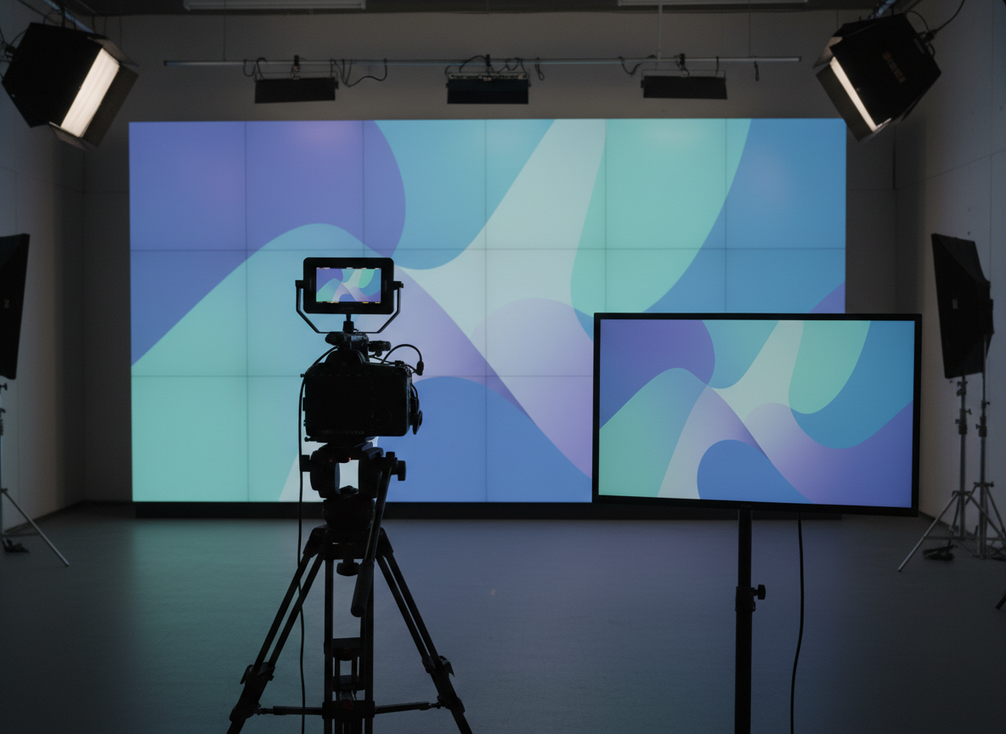
A useful camera-safe LED wall checklist starts with the wall, but it should never stop there. Shutter timing, genlock, exposure, and the content you plan to shoot can all change the result. The most reliable answer comes from the actual camera chain, not from a spec sheet alone.
Refresh Rate First: The Spec That Usually Shows Up on Camera
Refresh rate is usually the first number buyers inspect because it is often the first place camera artifacts show up. When the timing is off, footage can reveal flicker, scan lines, rolling bars, banding, or tearing even if the wall looks fine to the eye. Industry guidance on XR refresh planning points to 7680 Hz as a practical reference for high-end virtual production and XR use, but that should be treated as a planning floor, not a universal guarantee.
What matters is the interaction between the wall and the camera. Mismatched shutter and refresh timing can expose artifacts even when the nominal refresh number looks strong. Brompton’s ShutterSync approach describes the same basic problem from the processor side: the camera and the LED timing need to line up well enough for the footage to stay clean.
For most teams, the practical judgment is simple: higher refresh gives more margin, but the minimum only makes sense in context. A wall that is fine for standard broadcast-style capture can still break down when you use faster shutter settings, slower motion blur, or high-frame-rate shooting. If you are building a shortlist, use refresh rate to separate "worth testing" from "too risky to trust without proof."
If the wall is meant for camera-facing XR work, treat around 7680 Hz as a strong planning reference. If the shoot uses faster shutter or high-frame-rate capture, the safe target moves up, and the exact camera settings matter more than the marketing label.
A higher refresh number helps most when your camera timing is controlled. If shutter speed, frame rate, and wall scan behavior are not aligned, a large refresh spec can still disappoint in footage.
Bit Depth and Gray Scale
Bit depth is the second spec buyers should check, because it affects how smooth gradients look once the camera starts revealing small steps. In the VP processor documentation, 10-bit or 12-bit input is the kind of range often discussed for virtual production workflows, but that input number is only one part of the story. The output still depends on the whole signal chain.
The practical issue is not abstract precision. It is whether you see contouring in skies, visible steps in shadows, or tonal breakup in large flat areas. Brompton’s extended bit depth guidance is useful here because it shows why low-brightness detail can be the hard part: a wall may look acceptable at full brightness, then reveal banding when it is dimmed for camera use.
That is why it helps to separate input bit depth from effective grayscale performance. A strong input spec does not automatically mean the panel will preserve every tone equally well after processing and calibration. For camera-facing LED walls, the better question is whether the system keeps gradients smooth in the actual scenes you plan to shoot.
If your hero shots include skies, skin tones, or dark gradients, bit depth matters as much as refresh rate, and sometimes more, because banding can be easier to see than flicker once the footage is graded.
A wall with a good-looking bit depth number on paper is not enough by itself. If the low-brightness image breaks into steps during a test shot, the system is not camera-ready yet, even if the headline spec looks strong.
The Full Camera-Safe Checklist
Refresh and bit depth are the starting point, not the finish line. The variables below are the ones most likely to change the outcome in the field, even when the wall spec looks promising.
| Variable | Why It Matters | What To Verify Before The Shoot | Risk If Ignored |
|---|---|---|---|
| Genlock or sync | Helps the camera and LED processor stay aligned | Confirm the camera, processor, and content engine are locked to the same timing plan | Visible tearing, rolling bars, or unstable frames |
| Shutter angle or shutter speed | Changes how the sensor samples the wall | Match the planned camera settings to the wall test | Flicker or scan lines that only appear on camera |
| Frame rate | Changes how the wall timing is sampled | Test the exact capture frame rate, not just a generic one | Artifacts that appear only at production frame rate |
| Scan mode | Affects how the wall updates across the panel | Ask for the scan behavior, not just refresh rate | Banding or line visibility in motion |
| Calibration | Shapes tonal smoothness and color stability | Review calibrated footage, not factory defaults | Shadow breakup or uneven gradients |
| Content brightness | Changes how much low-end detail is visible | Test both bright and dim material | Banding in shadows or flat fields |
| Viewing distance | Affects how obvious fine patterns look | Check the distance used on set and in tests | Visible texture or moiré in camera moves |
| Camera movement | Reveals timing flaws during pans and pushes | Test the moves you expect in the shot list | Flicker, tearing, or rolling artifacts in motion |
The point of this checklist is not to make the decision harder. It is to stop one spec from hiding a bad fit elsewhere in the chain. A wall can be impressive on paper and still fail when the shutter, scan, or sync plan changes.
How to Test a Wall Before You Commit
The best buying decision is still a camera test. Start with fixed camera settings, then change one variable at a time. Use the actual lens, frame rate, shutter, and exposure you expect on set. Then shoot representative motion, flat gradients, skin tones, and dark scenes so you can see flicker, tearing, and banding before the stage goes live.
Review the footage in the same pipeline you will use for approval. A wall that looks fine on the monitor can still fail once the footage is played back through the real review path. Capture a baseline for the camera settings, wall settings, and content type, so the next shoot has something to compare against.
For procurement, this is the cleanest rule: compare candidate walls under the same camera conditions, not by headline specs alone. If a vendor cannot show clean footage with your settings, treat that as a warning, even if the refresh number and bit depth look strong.
If you are narrowing options, keep the camera test simple, repeatable, and tied to the same shot list you plan to shoot. That will tell you more than a spec sheet can.
Final Takeaway
For minimum refresh rate for camera-safe virtual production LED wall setups, the right answer is usually "high enough for your camera setup, not just high on the spec sheet." Refresh rate handles flicker and scan behavior, bit depth handles tonal smoothness, and the rest of the chain decides whether the system actually holds up on camera. Use the wall as a candidate, not a promise.
If you are comparing options now, check refresh, bit depth, scan behavior, and sync together, then ask for a test with your exact camera settings. If you want to browse camera-facing rental and stage options, compare rental stage LED display categories and request a production test before you commit.
FAQs
What Refresh Rate Is Usually Considered Camera-Safe for XR LED Walls?
There is no universal minimum that works for every shoot. A useful planning reference is around 7680 Hz for high-end virtual production, but the real floor depends on shutter, frame rate, scan behavior, and whether the wall is being tested with your exact camera settings.
What Bit Depth Should a Virtual Production LED Wall Have?
The better question is whether the wall preserves smooth gradients in the scenes you plan to shoot. 10-bit or 12-bit input is common in virtual production discussions, but the useful result still depends on processing, calibration, and whether shadows or skies stay clean in camera.
Can Genlock Fix Flicker or Scan Lines on an LED Wall?
Genlock helps synchronize timing, but it cannot rescue a wall that is mismatched to the camera setup. If the scan mode, shutter, or refresh floor is wrong, sync alone will not remove the artifact. Treat genlock as part of the fix, not the whole fix.
Why Does an LED Wall Look Fine to the Eye but Fail on Camera?
Human vision and camera sensors do not sample the wall the same way. Motion, rolling shutter, and brightness steps can be invisible in person but obvious in footage. The check is not whether the wall looks smooth in the room; it is whether the recorded image stays clean during the planned moves.
How Do You Test an XR LED Wall Before a Shoot?
Use the exact camera settings, then shoot motion, gradients, and dark scenes one variable at a time. Review the footage in the same pipeline used for approval, and save the settings that passed. That gives you a repeatable baseline for the next stage build or rental decision.