

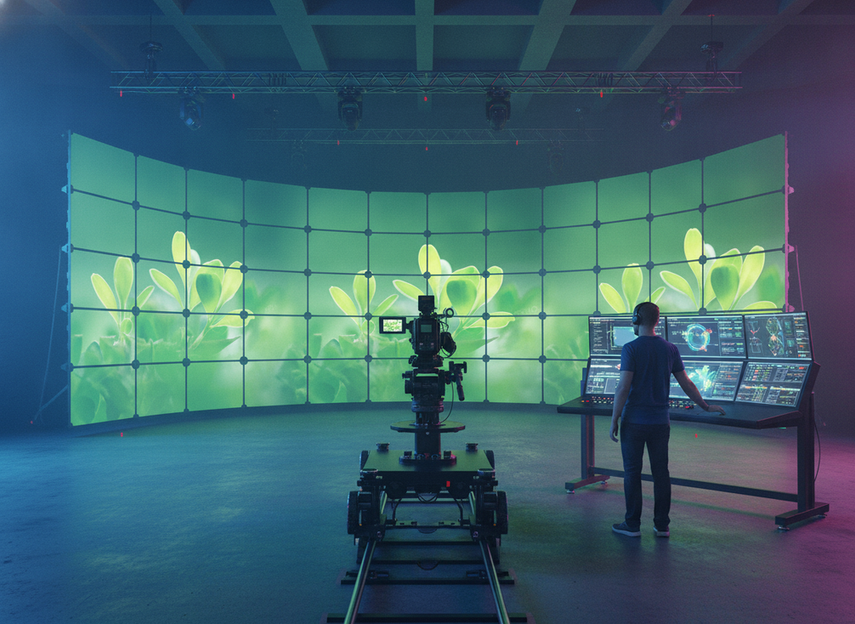
XR LED wall calibration works best when you treat the virtual production LED wall as a workflow, not a single spec. Start with geometry and the signal chain, then lock timing with genlock, then tune camera settings and moiré control. If you skip that order, it is easy to chase the wrong artifact and make the image look worse instead of better.
What Needs to Be Calibrated First
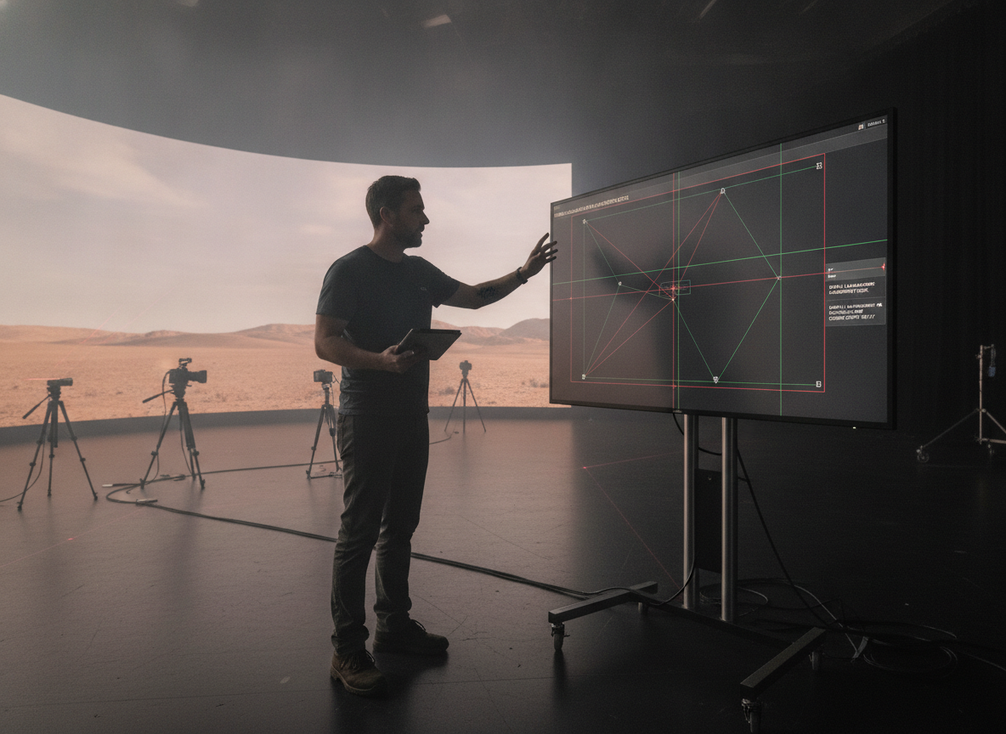
Before you judge a virtual production LED wall camera-ready, confirm the camera position, lens choice, wall output profile, and signal path. Spatial calibration is the step that aligns the camera’s position and lens characteristics to the LED volume, which is why it belongs before fine tuning, not after it. Disguise’s spatial calibration workflow reflects that same order: match the physical setup first, then refine the image.
Check the Camera and Wall Geometry
For most stages, geometry comes before polish. A wall can look clean from the audience position and still show edge crawl, texture, or aliasing once the camera moves closer or changes angle. That is why camera blocking, shot distance, focal length, and expected framing should be defined before you start chasing artifacts.
If the shot plan is still moving, the calibration will move with it. A long lens, a close camera position, or a steep angle can all make panel structure more visible, so the same wall may behave differently from one scene to the next. Treat those choices as calibration inputs, not afterthoughts.
Set the Initial Wall Output Profile
The first wall pass should aim for repeatability, not beauty. Establish the baseline output mode, color response, and test content before you start polishing the look. A structured pre-shoot workflow should also verify the signal chain and the wall profile before fine tuning, so the team can return to a known starting point if the image drifts during the day.
What this means in practice is simple: decide who owns scaling, who owns color conversion, and who confirms timing at the processor. If those handoffs are unclear, the crew can mistake a processing issue for a panel issue and waste time tuning the wrong layer.
Verify Signal Chain and Processing Order
The signal chain should be checked in the same order every time. Playback, processor, and camera each influence what the wall looks like on set, and a mismatch in any one of them can create artifacts that resemble a display problem. The camera calibration workflow is useful here because it emphasizes repeatable verification before visual polish.
A practical rule: if the wall changes, the processor changes, or the camera package changes, recheck the baseline. That habit saves time later because it keeps the team from debugging a stale setup.
How to Reduce Moiré Without Softening the Image
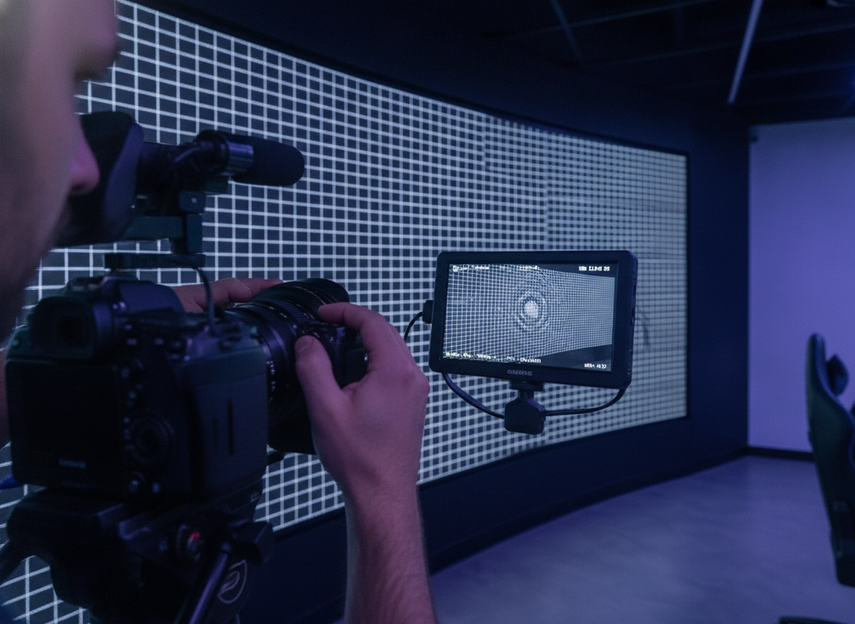
Moiré is usually a sampling conflict between the panel structure and the camera system, not just a blur problem. If genlock and timing are already stable, the next fixes are usually camera-side or staging-side adjustments. A practical troubleshooting thread from video engineers suggests starting with distance, focus, aperture, optical low-pass filtering, and mild diffusion before moving to heavier softening.Tips & Tricks for LED Wall Moiré
Tune Camera Focus and Distance
The least destructive fixes usually come first. Small changes in camera-to-wall distance, focus, or aperture can reduce visible interference without making the wall look mushy. That matters because heavy diffusion can hide moiré and still leave you with a flatter image than the creative team wants.
If the artifact changes a lot as the camera moves, that is a clue that the issue is spatial rather than a simple wall setting. In that case, check the lens choice and blocking before you reach for stronger diffusion.
Adjust Wall Pattern Visibility
Fine textures, high-frequency content, and aggressive scaling can all make the wall structure easier to see on camera. Test plates help because they make repeatability obvious: if the pattern appears across multiple shots, the issue is likely in the capture chain, not one piece of content.
That distinction matters on set. A scene-specific artifact can often be adjusted with content or framing, but a repeatable pattern usually needs a broader calibration change. The practical goal is to isolate which variable flips the result.
Use Diffusion and Framing Carefully
Mild optical softening is a valid tool when the camera and wall setup are already close, but it should stay a last-step compromise. Push it too far and you may solve the artifact while losing the detail the LED volume was supposed to deliver.
Framing can also help, but it should not disguise a broken setup. If a crop hides the worst area of the wall, that may be fine for a specific shot, yet it does not replace a real calibration fix.
Where Genlock Fits in the LED Volume Workflow
Genlock is the timing baseline for clustered XR workflows, not a catch-all fix. In Unreal’s nDisplay workflow, a primary node receives the external genlock signal and distributes it to cluster nodes, which is why timing sync has to be established before you evaluate the picture.nDisplay Synchronization with NVIDIA GPUs in Unreal Engine Once that is stable, you can separate sync problems from image-structure problems more cleanly.
Genlock helps align the system, but it does not guarantee a moiré-free image or perfect camera compatibility. If artifacts persist after sync is stable, the next question is usually not "Do we need more genlock?" It is "What changed in shutter behavior, geometry, lensing, or camera position?"
Keep this section compact in practice: verify external genlock distribution, confirm timing after any hardware change, and then retest with the same shot setup. That sequence makes troubleshooting faster because it keeps timing, optics, and wall behavior from getting mixed together.
Match Refresh, Brightness, and Camera Settings
Refresh behavior, brightness, shutter, and exposure belong in one matching problem because the camera sees them together. ARRI’s virtual production guidance notes that shutter speed or shutter angle should be matched to the wall’s refresh behavior to reduce flicker and scan-line artifacts. Brightness still matters, but it is hardware-specific, so it should be treated as a tuning variable rather than a universal target.
| Setting family | What it affects on camera | What to verify first | Typical workflow owner | Common failure mode |
|---|---|---|---|---|
| Refresh behavior | Flicker, scan lines, and temporal stability | Whether the camera shutter and wall timing are aligned | LED processor or display tech | Visible banding or unstable capture |
| Brightness level | Exposure headroom and perceived contrast | Whether the wall is too dim or too hot for the shot | LED wall operator with camera team input | Washed capture or clipped highlights |
| Shutter / exposure alignment | Rolling artifacts and on-camera stability | Whether shutter angle or speed matches the refresh behavior | Camera team | Flicker that appears only on recording |
| Mixed setup issue | Multiple problems at once | Which change happened last | Shared responsibility | The team chases one symptom while the real issue sits elsewhere |
This is where many crews over-focus on one number. If the wall is not stable on camera, the first useful check is usually not "What is the exact brightness?" It is "Which part of the chain changed first, and which team owns it?"
Build a Repeatable Pre-Shoot Checklist
A repeatable virtual production LED wall calibration workflow should feel boring by the end. That is a good sign. It means the team can run the same checks before every shoot, catch problems early, and avoid re-learning the setup from scratch each time.
- Power up the wall and confirm the environment is in the expected shooting state.
- Verify the signal path from playback through the processor to the wall.
- Confirm wall mode, baseline output profile, and test content.
- Check camera framing, distance, lens choice, focus, and blocking.
- Align timing, then confirm shutter or exposure behavior against the wall’s refresh behavior.
- Run motion content and a still test plate, then review the result on playback.
- If any component changes, repeat the timing and camera checks before rolling.
- Give final signoff only after the crew sees the same result twice in a row.
If you want a hardware path after the workflow is clear, browse fanless rental display options or mission-critical video wall systems only after you have defined your camera, distance, and timing requirements. The right panel is the one that fits the workflow you now know how to verify.
Final Takeaway
XR LED wall calibration gets reliable when you separate the job into three layers: setup order, timing sync, and camera-side artifact control. Geometry and signal chain come first, genlock comes next, and moiré fixes come after sync is already stable. If you build the workflow that way, you will spend less time guessing and more time confirming what actually changed.
For a new stage or a recurring show, use the same preflight sequence every time and recheck it whenever the wall, processor, or camera package changes. That is the fastest path to a repeatable camera-ready result.
FAQs
How Do You Reduce Moiré on an XR LED Wall?
Start with the least destructive changes first: distance, focus, aperture, lens choice, and framing. If the pattern is still obvious, try mild optical softening or content changes before heavier diffusion. The right fix depends on the wall, lens, and camera combination, so a solution that works on one stage may not carry over unchanged.
What Does Genlock Do in a Virtual Production LED Wall Setup?
Genlock aligns timing across the imaging chain so the camera and wall stay synchronized. That makes it a core setup step, but it does not automatically remove moiré or guarantee clean capture. If the image still looks wrong after sync is stable, check optics, geometry, and exposure behavior next.
Can Refresh Rate Alone Prevent Flicker in XR Filming?
No. Refresh behavior matters, but shutter, exposure, scan behavior, and the rest of the signal chain also shape what the camera records. Treat refresh as one part of the matching process instead of a standalone fix. If the camera only flickers in certain settings, the mismatch may be in timing rather than the wall itself.
What Should Be Tested Before the First Camera Take?
Verify the signal path, confirm the wall profile, align timing, and check framing, focus, and exposure. Then run a short motion test and review the recording before the first real take. If any component changes after that, repeat the timing check instead of assuming the earlier result still holds.
Why Does an LED Wall Look Fine to the Eye but Not on Camera?
Human vision and camera sensors sample the image differently, so a wall can look clean in person and still reveal structure, flicker, or aliasing on recording. That is why the camera test matters more than the walk-up visual test. If the issue appears only on camera, the fix is usually in the workflow, not the audience view."