

XR LED volume setup works best when the studio plans the signal chain, sync, camera integration, and validation as one system instead of four separate tasks. Start with the stage goal, then verify timing and camera readiness before you lock in wall configuration or shoot-day expectations.
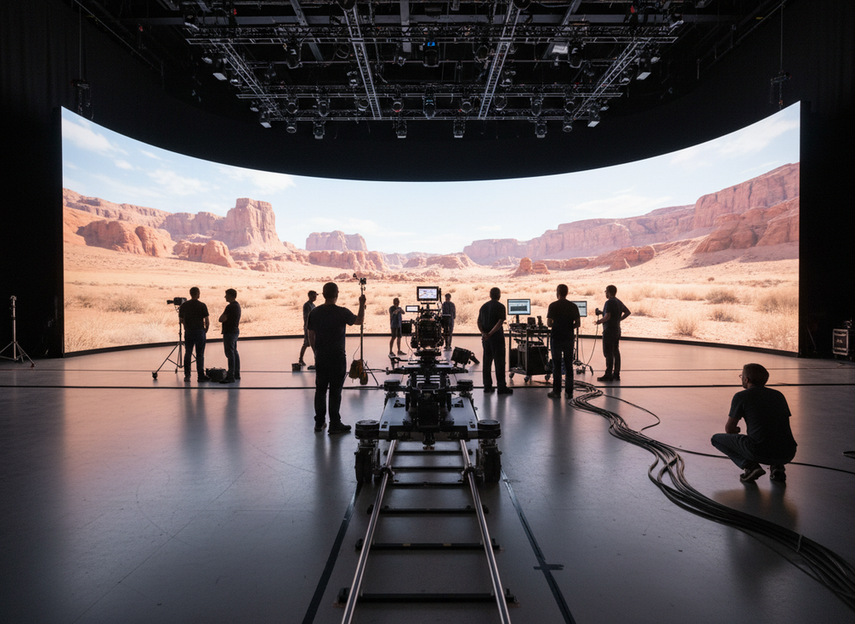
Plan the Volume and Signal Path
Before hardware arrives, decide what the volume has to do in practice. A car process spot, a dialogue scene, and a wide-action set do not create the same footprint, camera travel, or crew access needs. The XR signal chain should already be mapped from render source to processor, LED wall, tracking, camera monitoring, and return paths.
Set the Stage Goals and Shoot Constraints
Define the content type, camera movement, and usable wall footprint first. If the scene depends on deep camera moves or a curved build, that changes the floor plan and sometimes the panel family you should even consider. If ceiling height, staging access, or rigging limits are tight, those constraints should shape the volume before anyone orders panels.
Map the Signal Chain Before Installation
Trace each hop from media server or render node to the processor, wall, tracking system, and monitoring. That is where hidden delays, converter issues, and ownership gaps usually appear. One team should own the reference path end to end so setup day does not turn into a handoff dispute. In Epic’s In-Camera VFX quick start, the render engine, tracking system, and LED processor are treated as a connected workflow, which is the right mental model here.
Confirm Power, Space, and Rigging Access
Check rack space, cable routes, power distribution, and service access before panels are on site. If the processor cabinet blocks camera movement or the team cannot reach the back of the rack during a live session, the workflow slows down fast. Treat rigging, load planning, and floor access as setup inputs, not afterthoughts.
Choose the Processor and Sync Workflow
Processor choice changes how the whole XR LED volume setup gets commissioned. In practice, it affects input handling, output mapping, calibration work, and how easily the team can troubleshoot during rehearsal. Brompton’s processor workflow frames LED processing as part of mapping and calibration, not just a box that turns signals into pictures.
The useful question is not which processor looks strongest on a spec sheet. It is whether the processor supports the routing, sync, and service access the studio actually needs. If your setup has multiple feeds, changing camera positions, or a complicated monitoring path, processor placement and accessibility matter more than marketing language.
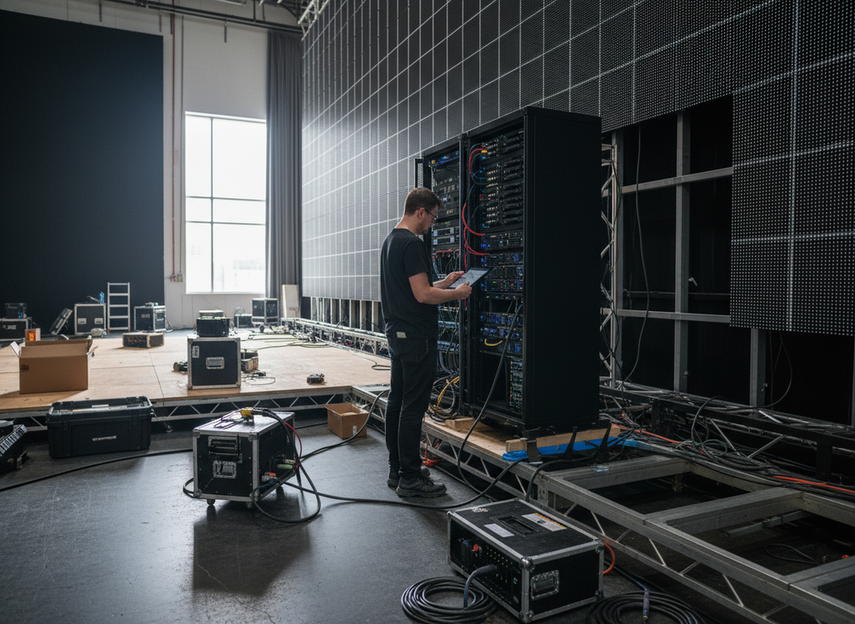
A good buyer-fit rule is simple: if the team cannot explain where the input enters, how the wall is mapped, and how the sync path is verified, the processor is not really "chosen" yet. It is only a placeholder.
| Setup decision | What to verify | Why it matters | Hold if… |
|---|---|---|---|
| Input handling | Source types, ingest path, and routing | Prevents last-minute conversion problems | the team cannot trace every source |
| Output mapping | Wall layout, transforms, and panel plan | Keeps the render image aligned with the physical build | the map changes without recheck |
| Sync dependency | Reference path and frame alignment | Reduces timing drift and visible mismatch | the sync source is unclear |
| Service access | Rack placement and maintenance space | Makes rehearsal troubleshooting possible | the processor cannot be reached quickly |
That table is the decision layer that matters most. If the wall is simple and the crew is small, a lighter workflow may be fine. If the stage is bigger, the routing is shared, or multiple camera setups are expected, choose the processor workflow that makes verification easiest, not the one that only sounds advanced.
Align Genlock, Frame Sync, and Camera Timing
Genlock is the timing reference that keeps the camera shutter, LED refresh cycle, and media server output aligned during capture. In the Virtual Production Field Guide, Epic treats genlock as core to stable capture, which is the right starting point for any camera-safe XR stage LED configuration.
Set the Reference Signal Order
Pick one timing reference path and keep it consistent. Then verify that every device that depends on sync, including the camera chain, processor, and render side, is actually using that same reference. If the team starts changing routing on the fly, recheck the reference from the top instead of assuming the old setting still holds.
Match Camera and Playback Timing
The wall, the camera, and the render pipeline need to agree on timing before the first serious take. A mismatch can show up as flicker, tearing, or footage that is simply not usable. If frame rates or shutter behavior change, re-verify the timing path before the next rehearsal pass rather than trying to patch it in post.
For advanced studios, the PTP sync standard is useful background for how high-precision timing can be handled over IP networks. Most teams do not need that level of detail for a first-pass setup, but it helps when the facility is building a more complex sync architecture.
Catch Timing Errors During Tech Check
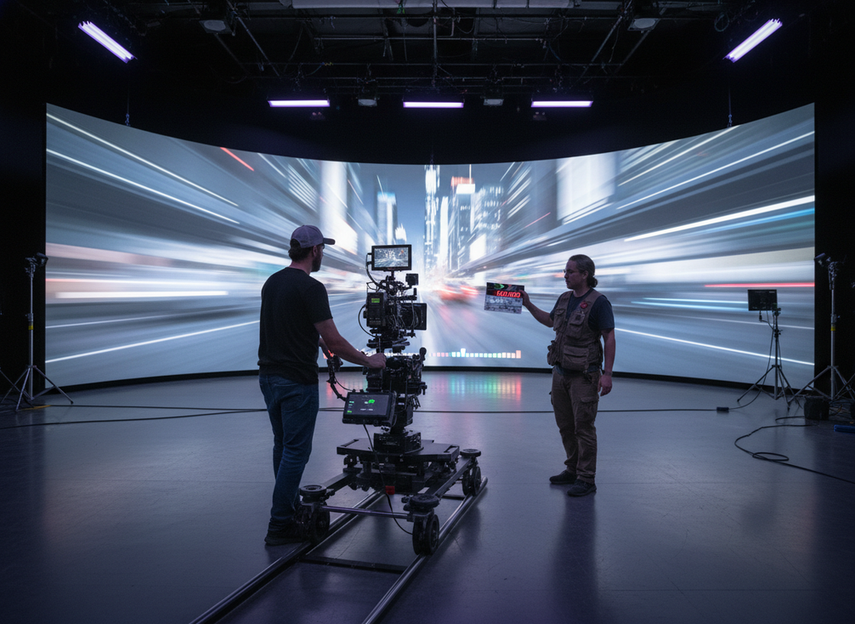
Use a short live test with camera movement, not just a static test pattern. Watch for instability, unexpected offsets, or anything that changes when the camera moves across the volume. If a device or cable path changed, assume the timing path needs to be verified again.
Configure the Wall for Camera Use
Camera-safe XR stage LED configuration is not only about making the wall look good to an operator in the room. It is about how the camera sees geometry, brightness, color behavior, and tracking alignment. A practical calibration approach is to match the wall’s color behavior with the camera using charts and reference targets, then verify the result under the same lens and framing the shoot will use.
Map the Wall Correctly for the Render Pipeline
Confirm that wall layout, orientation, seams, and transforms match the render pipeline’s expected geometry. If the build changes, revalidate the map. A wall that looks fine to the naked eye can still be misregistered in the camera if the geometry was entered loosely.
Calibrate Camera Position and Tracking Inputs
Calibrate the camera to the volume, not just to the floor tape. Tracking inputs need to stay stable enough for the scene being rehearsed, especially if the setup will move between wide shots and tighter framing. If you swap lenses, move the camera, or rebuild part of the wall, recalibrate instead of assuming the previous match still works.
Check Brightness, Curves, and Viewing Angles
Set brightness and curve decisions around camera exposure, not operator preference alone. A curved or corner build can help the stage shape, but it also changes what the camera sees at the edges. Use rehearsal to catch geometry or viewing-angle issues before they become expensive to fix under time pressure.
Validate the Volume Before Shoot Day
XR LED volume setup should end with a readiness gate, not a warm-up. A preflight that checks signal, sync, mapping, camera behavior, and content playback in one pass catches the problems that are most costly to find on the first real shoot. Frame.io’s practical warning about common tech-check failures matches what crews usually see: frame-rate mismatches, latency in the tracking path, and assumptions that were never fully tested.
- Verify signal path and power. Confirm every source reaches the processor, the wall powers correctly, and the crew knows which device is responsible for each hop.
- Confirm sync. Recheck the reference path and make sure timing still holds after any routing change.
- Inspect wall mapping. Check geometry, transforms, and panel order against the planned render output.
- Rehearse with the camera. Use real movement, not just a static view, so timing and tracking issues show up early.
- Review artifacts. Look for flicker, tearing, seams, or color shifts that only appear under camera motion.
- Document sign-off. Record what passed and what still needs adjustment so the team does not repeat the same checks.
If the team changes processor settings, camera settings, or routing after rehearsal, the preflight needs to run again. A clean sign-off is only useful if the setup that got signed off is still the setup on shoot day.
Final Takeaway
A reliable XR LED volume setup starts with one rule: plan the signal chain, genlock, camera timing, and wall calibration as a single workflow. If any of those parts is treated in isolation, the stage usually pays for it later in troubleshooting time. Before procurement or rehearsal, confirm processor access, sync ownership, and camera readiness, then run a full preflight on the actual build.
FAQs
What Processor Do You Need for an XR LED Wall?
Choose the processor around the routing, mapping, and sync needs of the full stage, not just the wall size. If the setup has multiple feeds, changing camera positions, or difficult service access, verify input handling, output mapping, and reference path first. The right choice is the one the crew can commission and recheck without guesswork.
Why Does Genlock Matter in an XR Volume Setup?
Genlock matters because it keeps the camera, wall, and media server aligned during capture. Without that timing reference, the stage can drift into flicker or mismatch that is hard to cleanly recover from on set. The practical check is simple: if the timing path changes, reverify it before the next take.
How Do You Check Camera and LED Wall Timing Before a Shoot?
Run a live rehearsal, not just a still image test. Confirm the reference path, match rates, move the camera through the usable frame, and look for instability. If the problem appears only during motion, the issue is usually in timing, tracking, or routing rather than in the wall image alone.
What Are the Most Common XR Stage Setup Mistakes?
The biggest mistakes are treating processor, wall, and camera as separate projects, skipping sync verification, and assuming calibration will hold after a lens or routing change. If the crew cannot explain who owns the reference path and what gets rechecked after changes, the setup is still fragile.
Can a Rental LED Wall Be Used for Virtual Production?
Yes, a rental LED wall can fit virtual production when the wall, processor, sync path, and camera workflow are validated for the specific stage. The deciding factor is not the rental label itself, but whether the build can hold geometry, timing, and calibration through rehearsal and shoot day.