

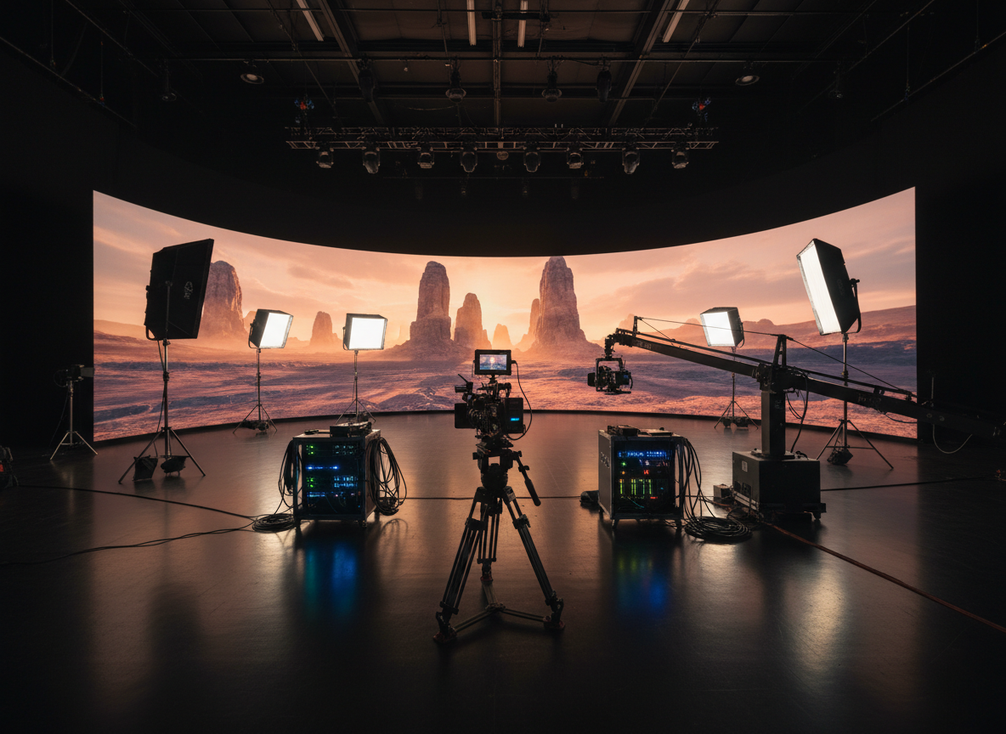
A camera-safe validation protocol for a virtual production LED wall is the fastest way to reduce shoot-day surprises before principal photography starts. The point is not to promise a perfect wall. It is to catch flicker, moiré, scan issues, and exposure drift while there is still time to adjust the camera, wall, content, or geometry.
Why Pre-Production Validation Matters
Pre-production validation matters because the stage only looks camera-safe when the full system behaves together. A wall can look fine to the eye and still show issues once a sensor, shutter, lens, and content pattern are in play. Netflix’s virtual production guidance treats this kind of testing as a way to surface camera-related production risks before they become delays, reshoots, or last-minute compromises.
For XR teams, that usually means fewer surprise fixes during tech rehearsal, cleaner sign-off between production and technical crews, and less schedule risk on the shoot day. In practice, the protocol is a pre-shoot workflow, not a buying guide. It helps answer one question: can this exact camera package, with this exact wall setup and this exact content, be cleared for the day’s plan?
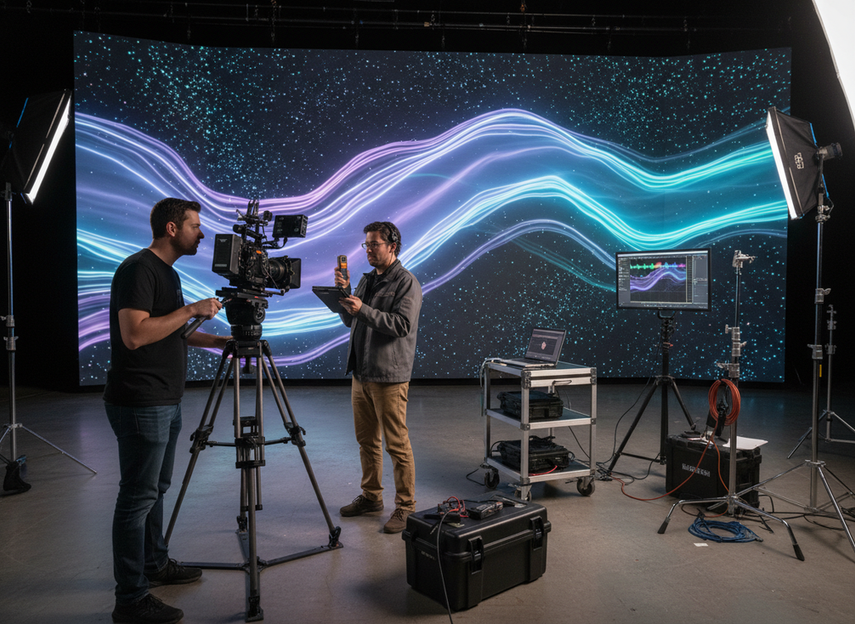
A useful rule is to treat a pass as local, not universal. If one camera package looks clean, that does not automatically clear a second body, a different lens, or a new frame-rate package. If the setup changes, the test should change with it.
Choose the right rental stage LED options only after the validation layer is clear enough for the shoot you are planning.
Document the Stage and Camera Baseline
Before the first pass, lock down the baseline. The goal is repeatability, not paperwork for its own sake. Unreal’s ICVFX guidance recommends logging repeatable camera and wall settings so the team can compare one pass with the next instead of guessing which variable changed.
Camera and Lens Settings
Record the camera body, lens, focal length, frame rate, shutter angle or shutter speed, ISO, aperture, and white balance. If the team is testing multiple lenses, write down which lens was used for each pass. Lens choice matters because it can change how visible moiré and scan artifacts appear in the frame.
Keep the settings stable unless the protocol calls for a controlled change. If someone adjusts shutter or white balance midway through the test, the previous result is no longer a clean comparison. That is the point where a log stops being a record and starts becoming an outdated reference.
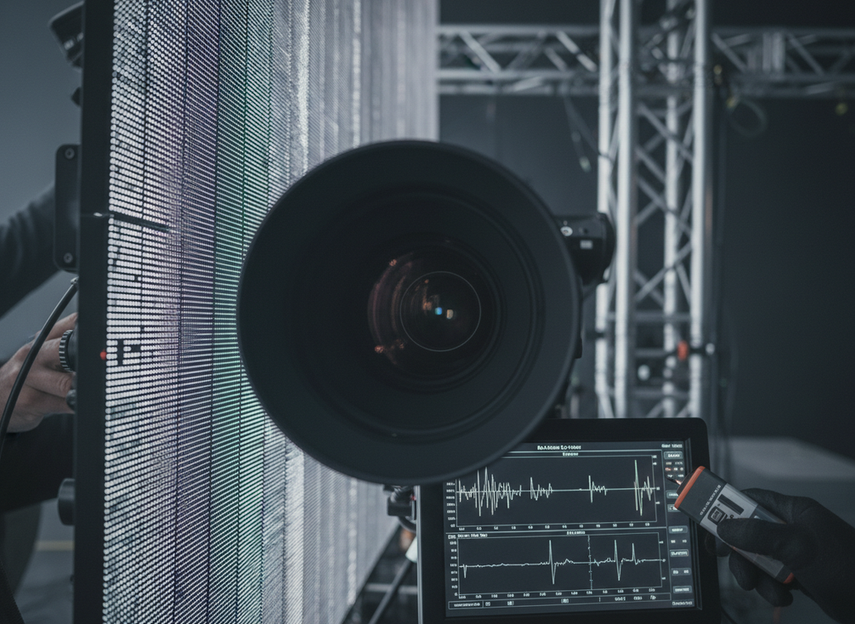
Stage and Content Variables
Document the wall configuration, pixel pitch, brightness setting, content type, camera-to-wall distance, and any relevant processing or sync settings. For XR work, content matters because fine detail, diagonal lines, and moving patterns can reveal issues that a flat test frame will hide. Geometry matters too, because a clean result at one distance may not hold at another.
If you want the test to mean anything later, save the same framing and the same content for the retest. A note that says "looked fine" is not enough. The next crew should be able to reproduce the same condition and see the same result.
Who Signs Off the Test Log
Assign one person to record the settings, one person to run the camera, and one person to approve changes or a retest. That does not have to be three different departments, but the ownership should be explicit. If a setting changes, the log should show when it changed and who approved the new pass.
The most common regret here is simple: a team signs off on a setup that no longer matches the setup that was actually tested. Once the log drifts, the pass no longer proves much.
Run the Camera-Safe Test Sequence
A repeatable camera-safe validation protocol for a virtual production LED wall works best when the team tests one variable at a time. The goal is a structured calibration pass: set a baseline, verify it, then change only what you mean to change.
- Verify the baseline setup. Confirm the camera, lens, wall mode, content, and sync settings match the log before recording anything.
- Start with a static frame or test pattern. Look for obvious flicker, scan-line behavior, exposure instability, or color shifts before adding motion.
- Move to the actual framing the production expects. Fine detail, edges, and diagonal elements are where moiré and aliasing are most likely to show up.
- Run motion tests. Pan, tilt, and move through the planned shot range so intermittent artifacts do not hide in a still frame.
- Stress the intended content. A clean calibration graphic is not the same as a real scene with texture, graphics, or moving foreground elements.
- Save stills, clips, and notes for every pass. If the team cannot review the result later, the test is too weak to support sign-off.
- If something changes, retest only that variable first. Do not stack multiple fixes at once, because that makes it impossible to tell what actually solved the issue.
That one-variable-at-a-time rule is what keeps the validation useful. If the crew changes shutter, distance, and brightness together, the next result may look better, but nobody will know why.
Read Flicker, Moiré, and Other Failure Modes
The main failure modes are easier to interpret when the crew thinks in symptom, likely cause, and next check.
Flicker and Banding
Flicker usually shows up as pulsing brightness, rolling bands, or frame-to-frame instability. In virtual production, it can be a sign of timing mismatch between the camera shutter and the wall’s refresh or scan behavior. The most useful first move is to recheck the controlled variables before blaming the panel itself.
That means confirming the shutter setting, frame rate, and wall processing state before changing more than one thing. If the artifact only appears in motion, capture video, not just stills. A short still frame can miss the problem entirely.
Moiré and Aliasing
Moiré and aliasing are pattern-interaction problems. Light Illusion’s virtual set guidance describes them as a result of how the camera sensor, lens, distance, and LED pixel structure interact, which is why a clean result at one framing can fail at another. The issue often shows up most clearly on fine detail, high-contrast lines, fabric textures, and diagonal shapes.
The first response is usually not "replace the wall." It is "reproduce the exact framing and content where it appeared." If the artifact follows a lens or distance change, that points the team toward geometry or optics. If it follows the content, the fix may be in the scene design.
Exposure Drift and Color Shifts
Exposure drift and color shifts can look like the wall is unstable, but they may also point to a settings mismatch. When the image changes as the camera or wall settings move, document exactly what changed and repeat the same pass with only one adjustment. That helps the team see whether the issue belongs to the camera, the wall, or the interaction between them.
A useful boundary here is conservative: do not call the stage "safe" just because one symptom improved. If another artifact appears after a change, the test still is not clean.
Decide Go, Conditional Go, or No-Go
The right decision is not always a clean pass or a hard stop. For XR stages, the practical middle ground is conditional go, but only when the issue is documented, owned, and tied to a specific workaround or retest plan. The multi-camera validation requirement becomes especially important when more than one camera package will be used on the same shoot.
| Test Result | What It Usually Means | Immediate Action | Who Reviews It | Production Status |
|---|---|---|---|---|
| Clean pass on the tested package | The camera, wall, content, and geometry are behaving as expected for the current setup | Save the log, clips, and settings; move to final handoff | Stage manager and technical lead | Go for the tested setup |
| Borderline artifact that improves with one controlled change | A specific setting, lens choice, distance, or wall parameter may be the trigger | Retest only the changed variable and record the result | Camera lead and LED technical lead | Conditional go until the workaround is confirmed |
| Repeated flicker, moiré, or exposure drift with no stable fix | The setup is still too uncertain for principal photography | Stop the handoff and escalate the issue | Production manager and technical lead | No-go for that setup |
| Pass on one camera package, unknown on another | The stage is not cleared across all intended camera configurations | Re-run the protocol for each body, lens, and frame-rate package | DP, camera team, and LED team | Conditional go until all packages are cleared |
The key judgment is simple. If the issue is repeatable, unresolved, or undocumented, do not treat it as a pass. If a workaround exists but only for one camera package or one framing, keep the approval narrow.
Finish the Readiness Check and Handoff
Before principal photography, save the final logs, stills, clips, and sign-off notes in one place. Confirm which camera package was tested, which wall settings were used, and who approved the result. If any of those elements change later, rerun validation before you call the stage ready.
- Keep the baseline log with the final pass.
- Save the clips that show the clean result and any borderline issue.
- Record the exact workaround if the stage is only conditionally approved.
- Revalidate after any camera, wall, content, or geometry change.
- Escalate unresolved artifacts instead of assuming they will stay manageable.
If you are choosing hardware or a rental path for the next stage, use the validation results to check compatibility rather than start from the catalog. Compare the setup against the tested condition first, then browse the closest rental LED family or high-precision touring display only after the camera-safe baseline is clear.
FAQs
What Causes Moiré on LED Walls?
Moiré usually comes from the interaction between the camera sensor, lens, distance, content detail, and the LED pixel structure. If it appears, the next step is to reproduce the exact framing and content, then change one variable at a time so you can see whether the artifact follows optics, geometry, or the scene itself.
What Camera Settings Should Stay Locked During Validation?
Keep frame rate, shutter, ISO, aperture, white balance, and focal length stable across comparable passes. If you need to change one of them, log it as a new test condition so the result is still comparable to the earlier pass rather than mixed into it.
Can a Stage Pass One Camera and Fail Another?
Yes. A pass on one body or lens does not automatically clear another package, especially if the sensor, focal length, or frame rate changes. Re-run the protocol for each intended camera setup so the result matches the actual shoot plan.
How Often Should XR LED Validation Be Repeated?
Repeat validation whenever the camera package, wall settings, content, framing, or stage geometry changes. If the setup has drifted since the last pass, rerun the same test sequence before principal photography instead of relying on an older sign-off.
What Is the Fastest Way to Escalate a Borderline Result?
Move it to conditional go only if the issue is documented, owned, and tied to one specific retest or workaround. Then repeat just the changed variable first. If the artifact persists, escalate rather than stacking more fixes onto the same pass.